
The problem #
Unable to compute face tables. The terrain associated with this geometry does not completely cover the 2D Flow Area ‘StudyBoundary’. See face(s) #(12412) (StudyBoundary) Geometry Writer Failed. Error Processing Geometry
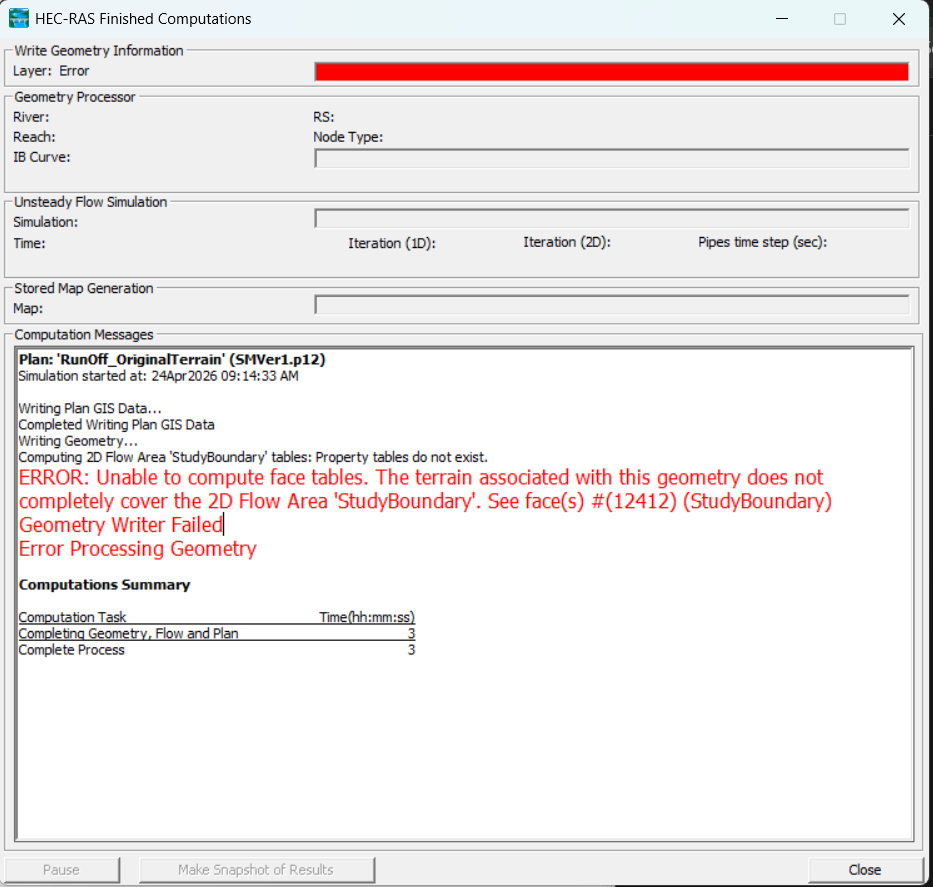
The cause #
Usually you get this when your DEM has “white patch” ( no data) at where the problematic face is located.
Troubleshooting #
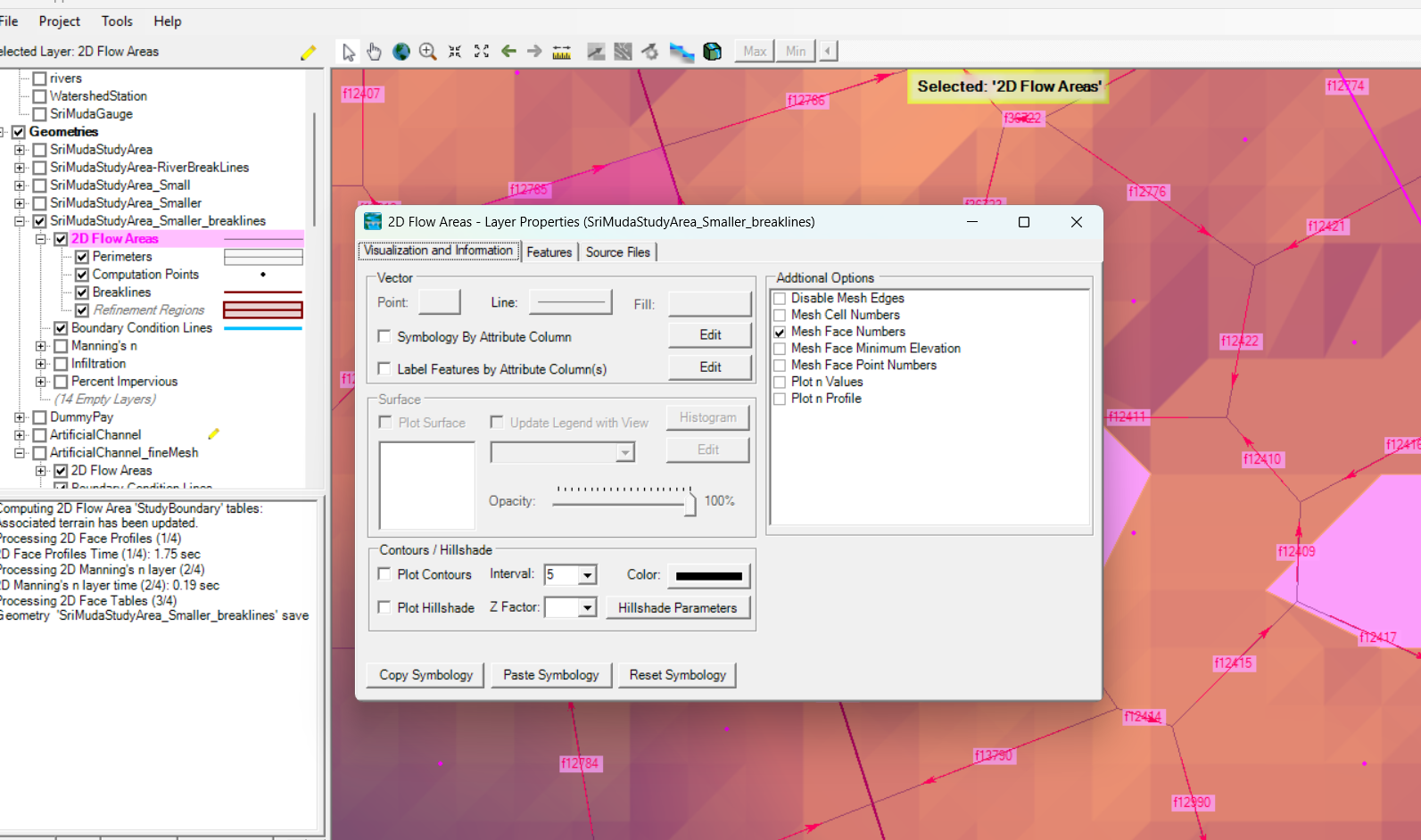
To check at where exactly the problem occurs, go Hec Ras Mapper, select the related Geometires, in this case, it’s SriMudaStudyArea_Smaller_breaklines. Then right click on 2D Flow Areas, select Layer Properties, and then turn on the Mesh Face Numbers, since we want to find out exactly which Face has a problem.
Then right click on your terrain with the related Geometries highlighted , and then choose Find.
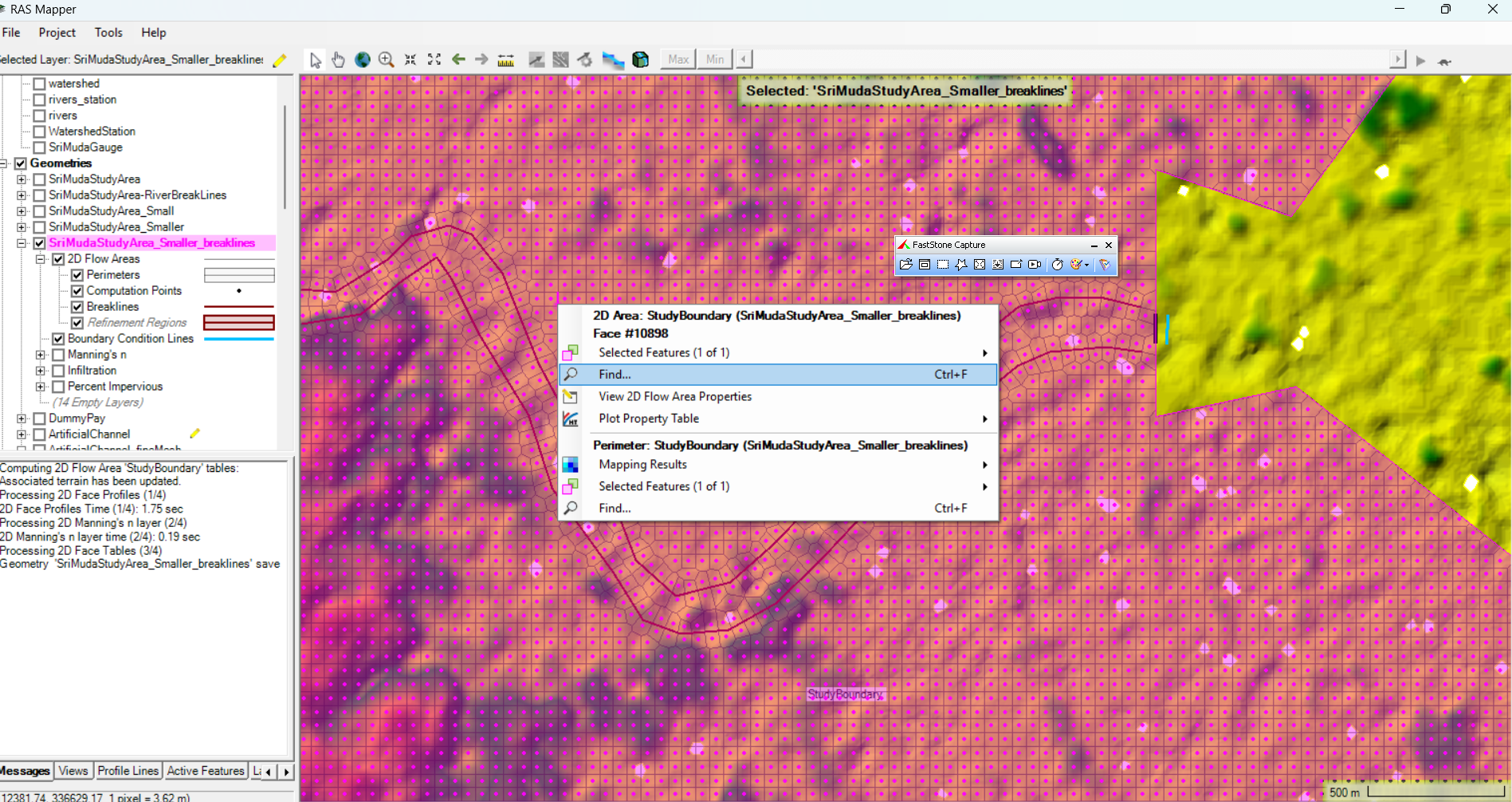
In the above example here, choose Face as the Sub-feature, type in 12412 in the Index field. We want to find the exact face that has this problem.
You will notice that for f12412, it lies entirely on a “white patch”. This indicates that there is no relevant topological data for the face, and hence the error; Hec Ras doesn’t have data at all to work on this face.
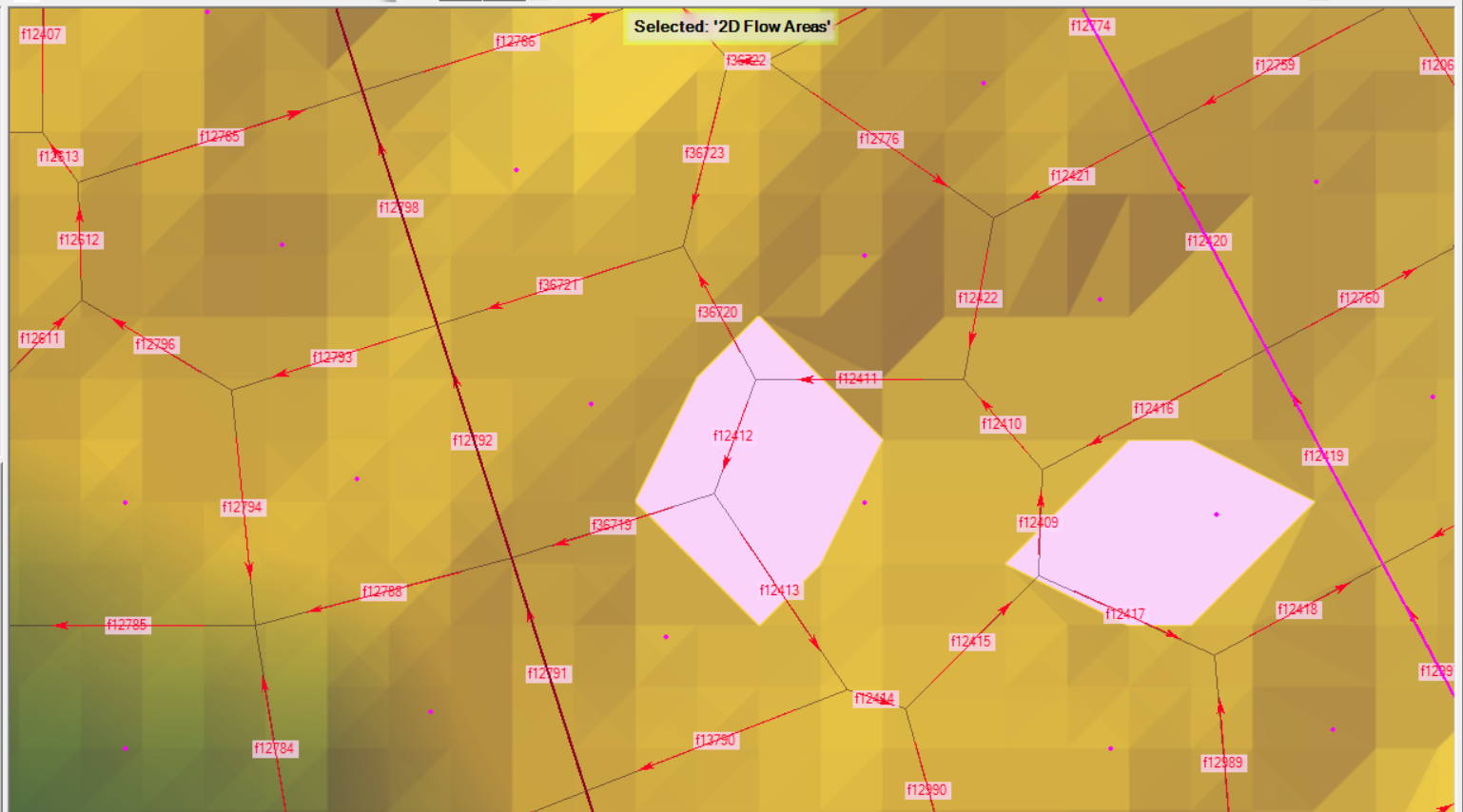
You may also notice that some of the face are only partially lying on the “white patch”, but that’s OK because Hec Ras has something to work on, the other parts that doesn’t lie on the white patch can provide adequate information.
Solution #
There is no way around it, except to patch the white patch at the DEM level by interpolating the nearby region to cover the white patch.
So to do it, you will select your existing Terrain Layer, right click on it, “Add New Modification Layer”, “Polygons”, “Auto Fill No Data Regions”. Hec Ras will try it’s best to fill up the No Data Region.
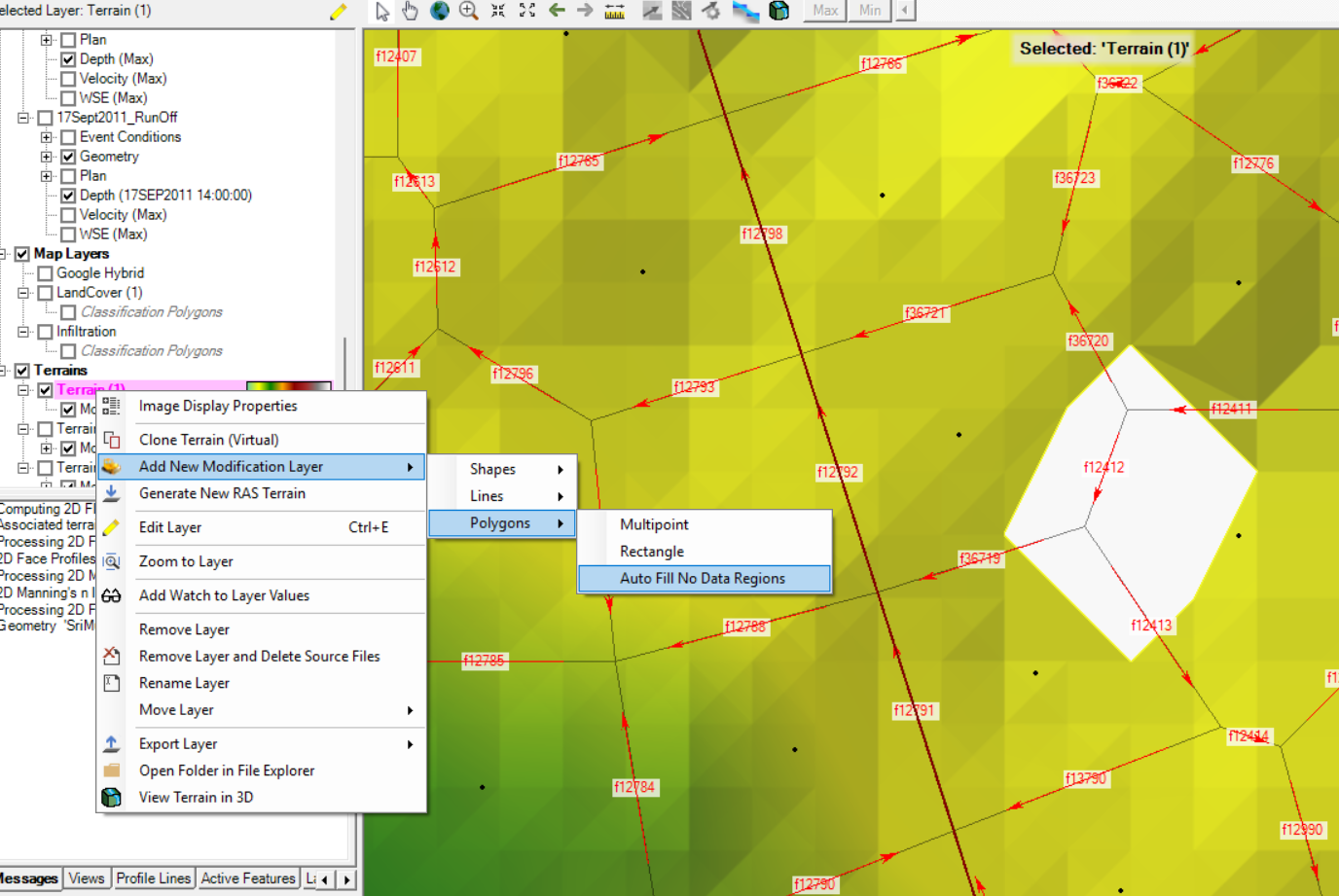
But this automatic solution may not be adequate; there might be still missing areas that Hec Ras is unable to fill up, so in this case, you have to manually fill up the white patch.
You can do this by selecting again your existing Terrain Layer, right click on it, “Add New Modification Layer”, “Polygons”, “Multipoint”, provide a Layer Name, and then start to draw a polygon around the white patch to cover it. Then at the “Polygon Mod Editor”, you Use Constant Elevation, and input in the elevation (m) at that area.
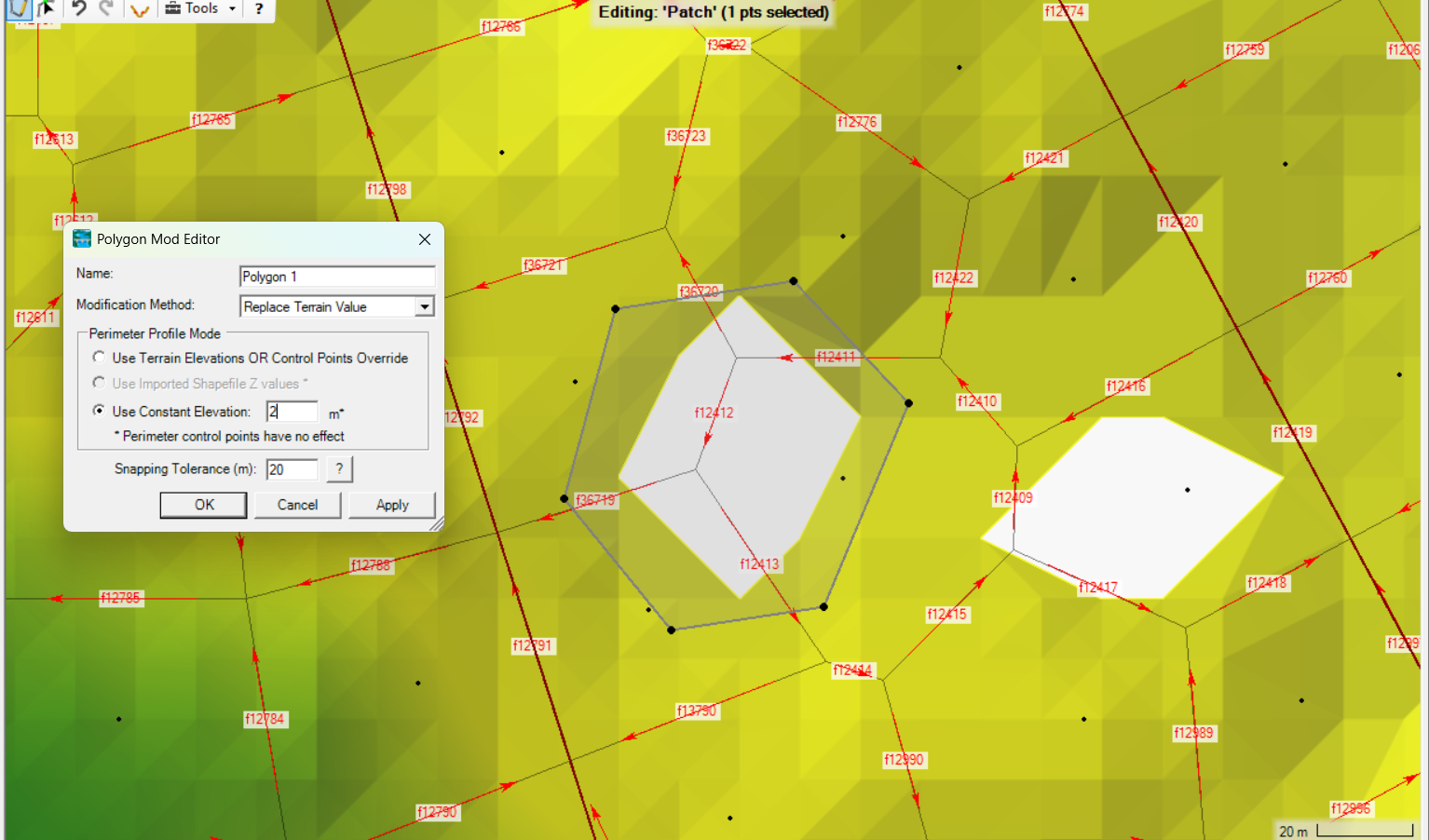
Just work through all the problematic face until you no longer get any error.

My passion is in sharing knowledge — Civil 3D or otherwise– with the world.
I’m also the benevolent dictator for life at MES Innovation Sdn Bhd.


