
Table of Contents
Installation Steps #
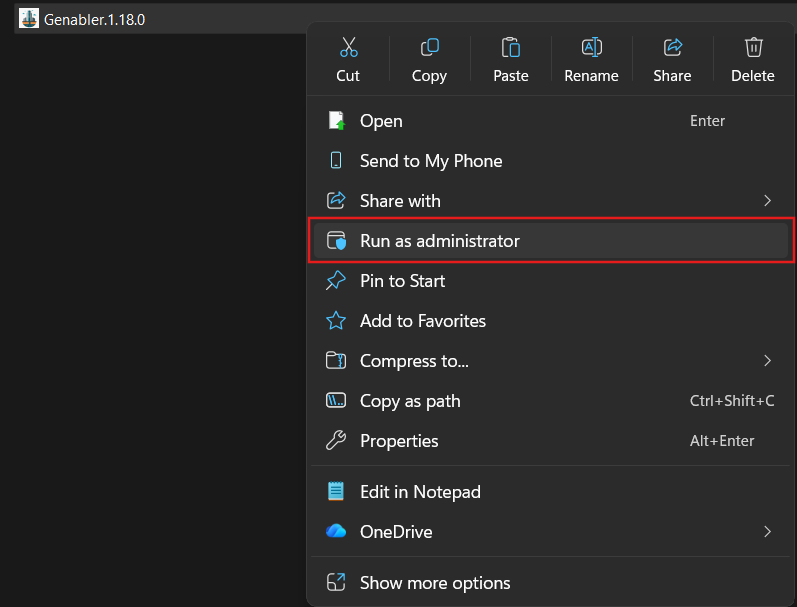
- Right Click on the installer and select “Run as Administrator”
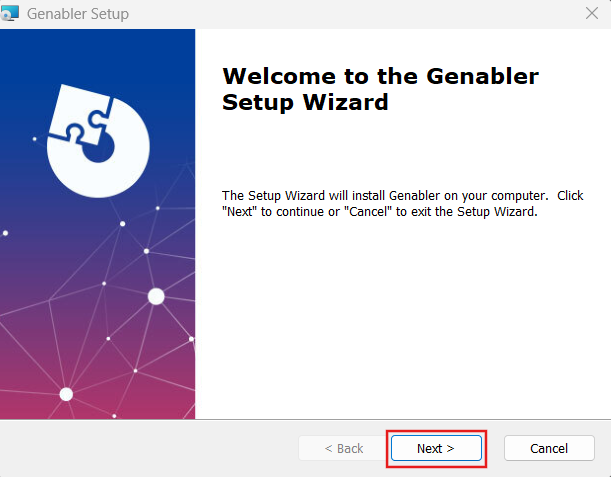
- Click “Next” to continue.
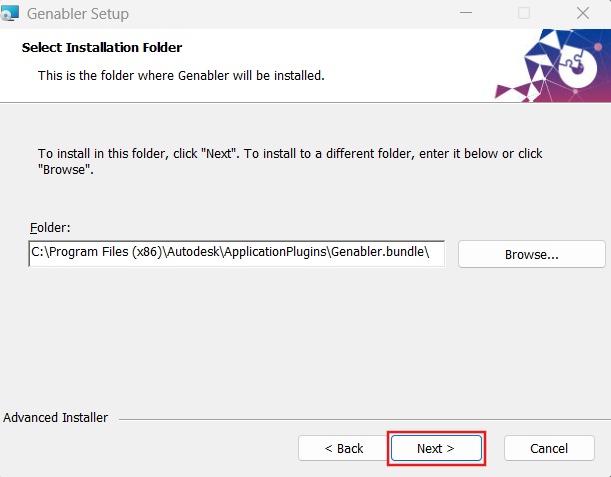
- Click “Next”. To install in a different folder path, click “Browse”.
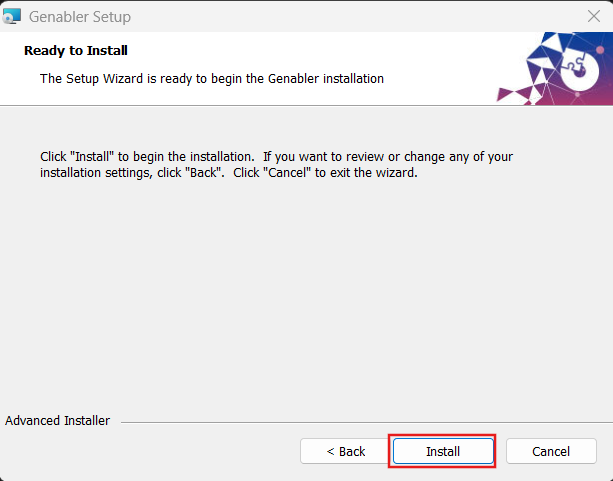
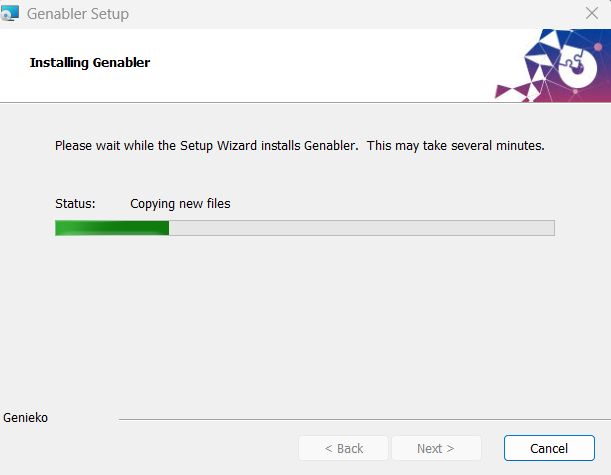
- Click “Install” to begin the installation.
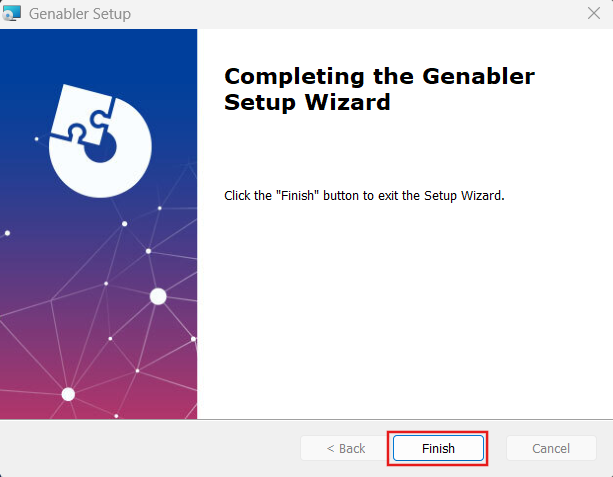
- Click “Finish” to exit the Setup Wizard
License Activation Steps #
-
Launch Civil 3D 2026 version or above.
-
Go to Genabler Tab and click “User Info”

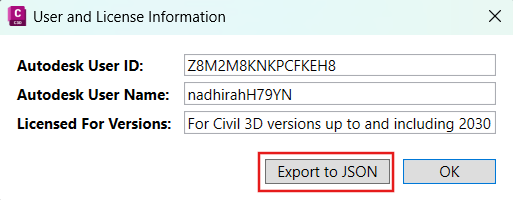
- Click Export to JSON and email the license information to MES Support Team at support@mes100.com to obtain the license activation key
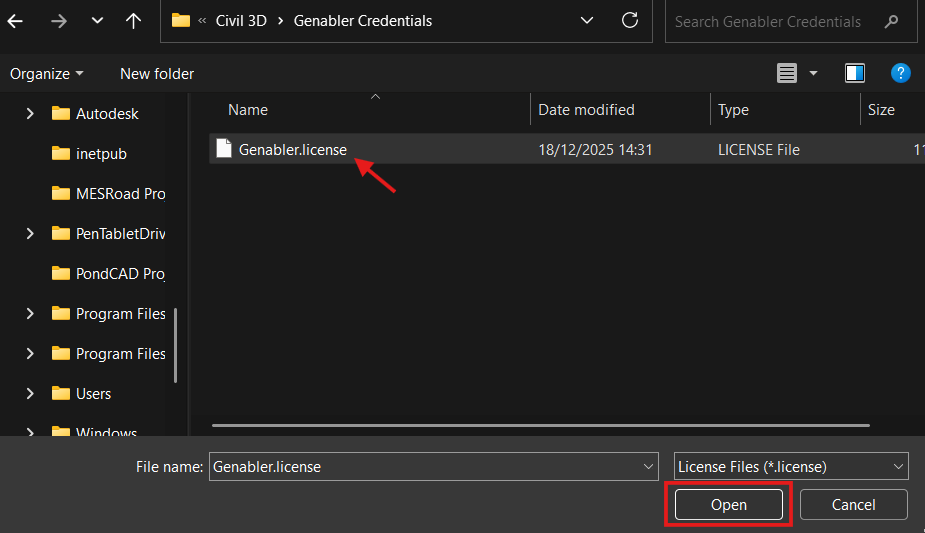
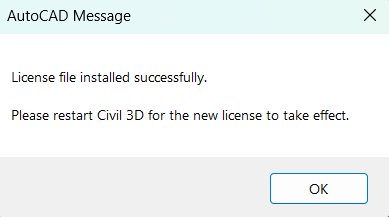
- Once the license activation key has been obtained, click “Activate License” and open the obtained license file.

- Restart Civil 3D to initialise the licensed setup and unlock the Genabler premium features.

My passion is in sharing knowledge — Civil 3D or otherwise– with the world.
I’m also the benevolent dictator for life at MES Innovation Sdn Bhd.


