
Motivation #
How do we check the slope grades or platform levels of the TIN Surface in Civil 3D?– As an engineer, you may be asked to validate your design with this information in the drawing, especially during a client-consultant meeting.
In Civil 3D, there is a specific feature for data extractions, known as Inquiry Tools.
This article will guide you on applications of the Inquiry Tool, illustrating how the software provides civil intels of your design.
What is the Inquiry Tool in Civil 3D? #
Inquiry tool is an advanced data extractor- it does not just read information based on where the mouse is, but it actually understands the complex surface geometrical data behind the design and carries out query-based analysis for the surfaces, alignments, profiles, and corridors.
Unlike typical labels (i.e., Surface labels, Alignment Labels, etc.), the Inquiry Tool does not require a specific layer and will not further clutter your drawing as it is designed to display instant and non-permanent information on a separate, dockable dialog.
Most importantly, the data extraction by the Inquiry Tool utilizes the Object Snapping (OSNAPs) during entities selection process, thus ensuring highly precise data, making it the perfect choice for quick and accurate measurements.
How can the Inquiry Tool be applied in a drawing? #
Where is the feature located? #
There are two ways of accessing the Inquiry Tool in Civil 3D- through (1) Command Line and (2) Analyze ribbon.
1. The Command Line:
Go to the Command Line > Type in RUNINQUIRY > Press Enter
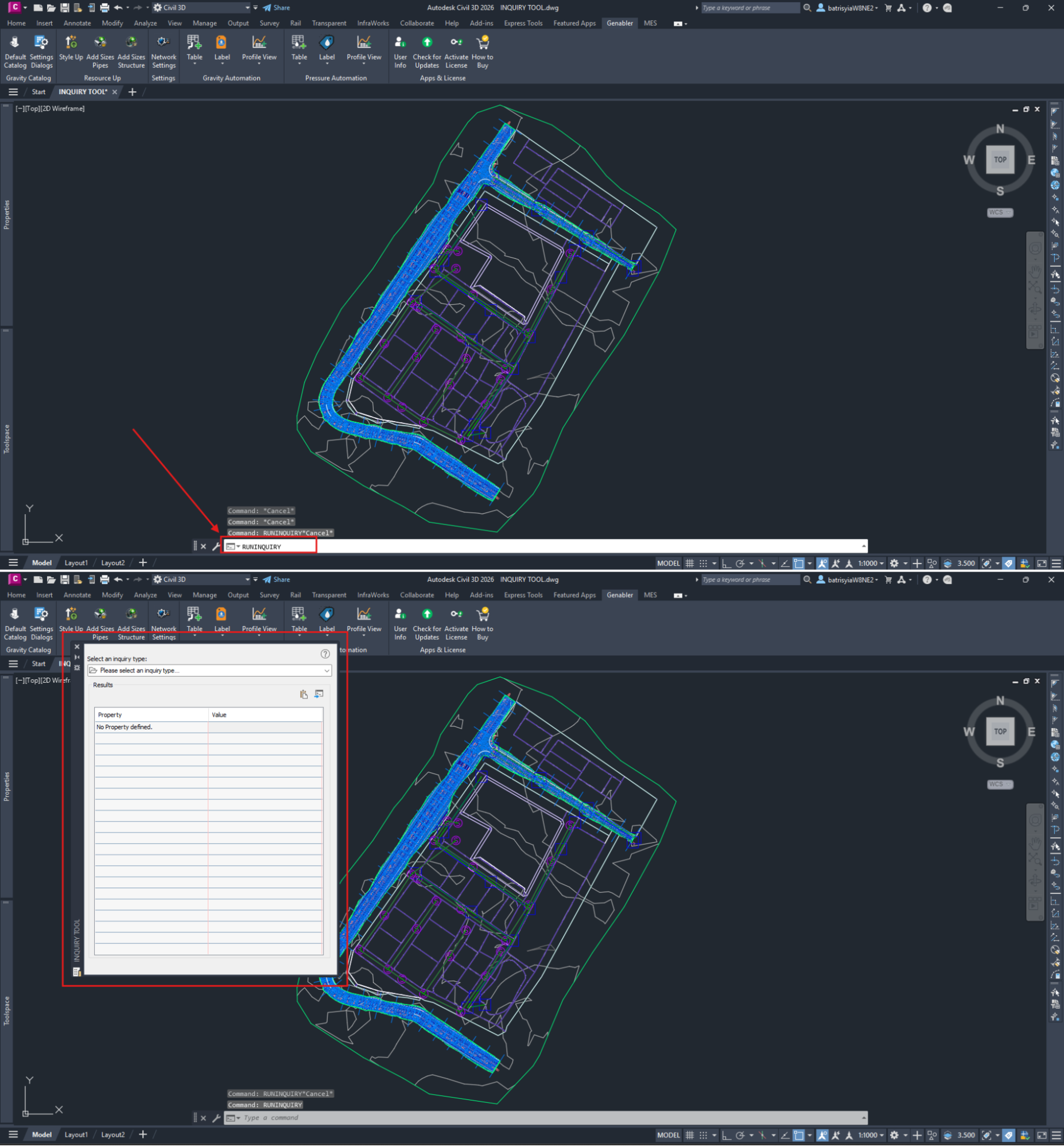
2. The Analyze Ribbon:
Go to Analyze ribbon > Inquiry section > Click on Inquiry Tool
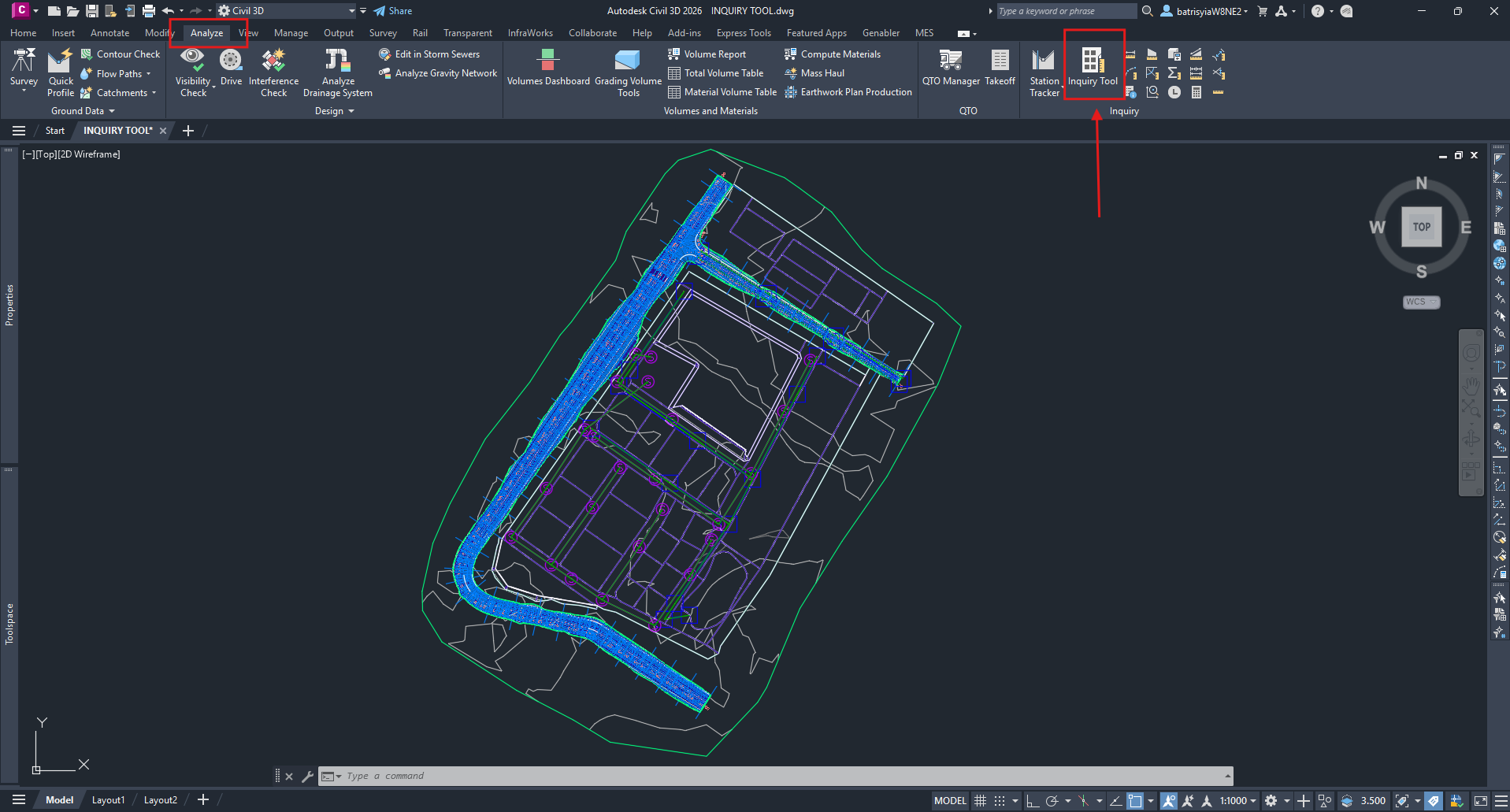
General workflow of the Inquiry Tool #
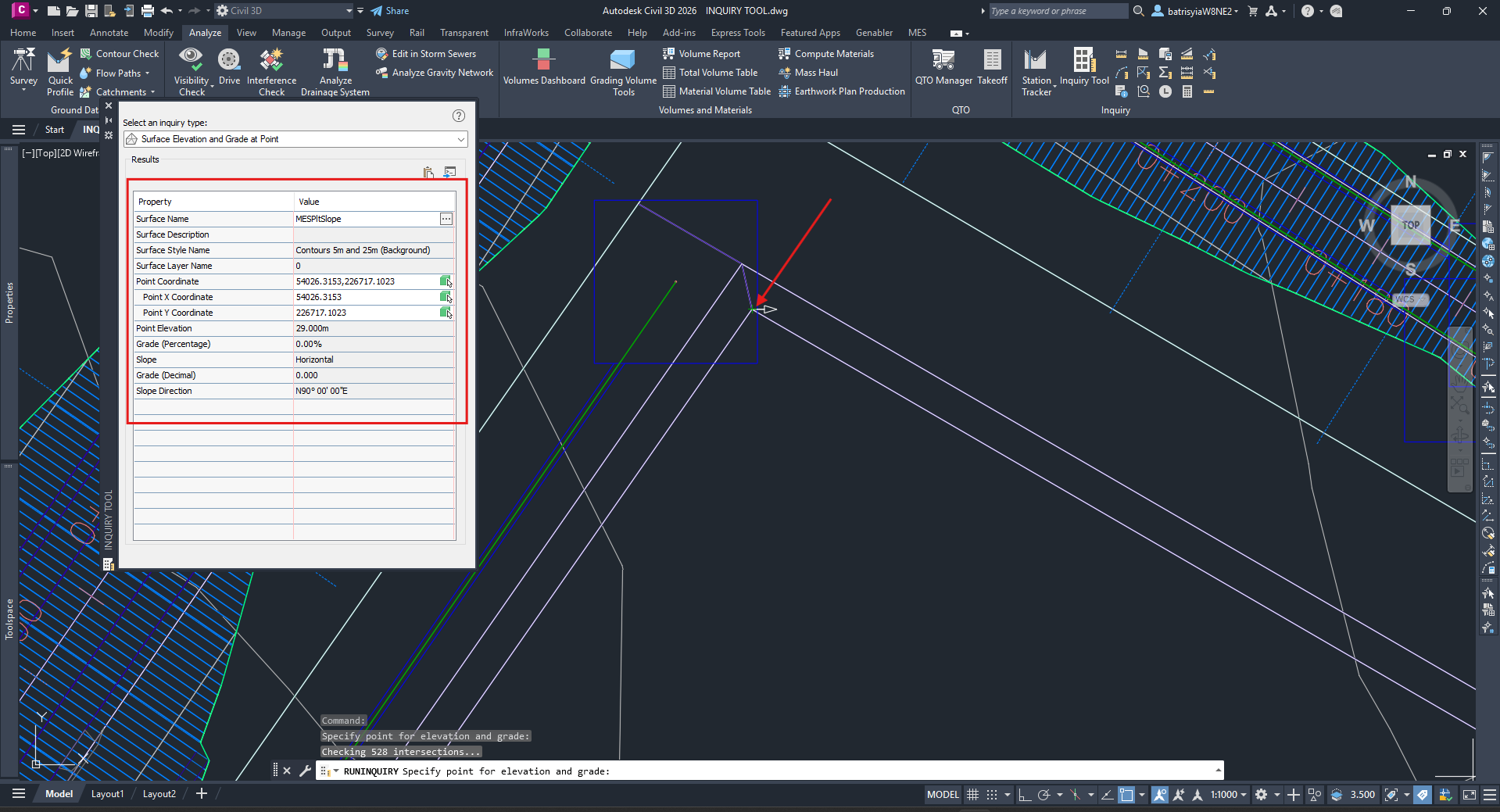
Once the Inquiry Tool palette has been prompted,
Step 1: Select the inquiry type
Under the Select an inquiry type selection, click on the dropdown button and choose the specific inquiry based on the Civil 3D objects that you want- i.e., if you wish to know the surface elevation of a platform at any corner, select the Surface Elevation and Grade at Point.
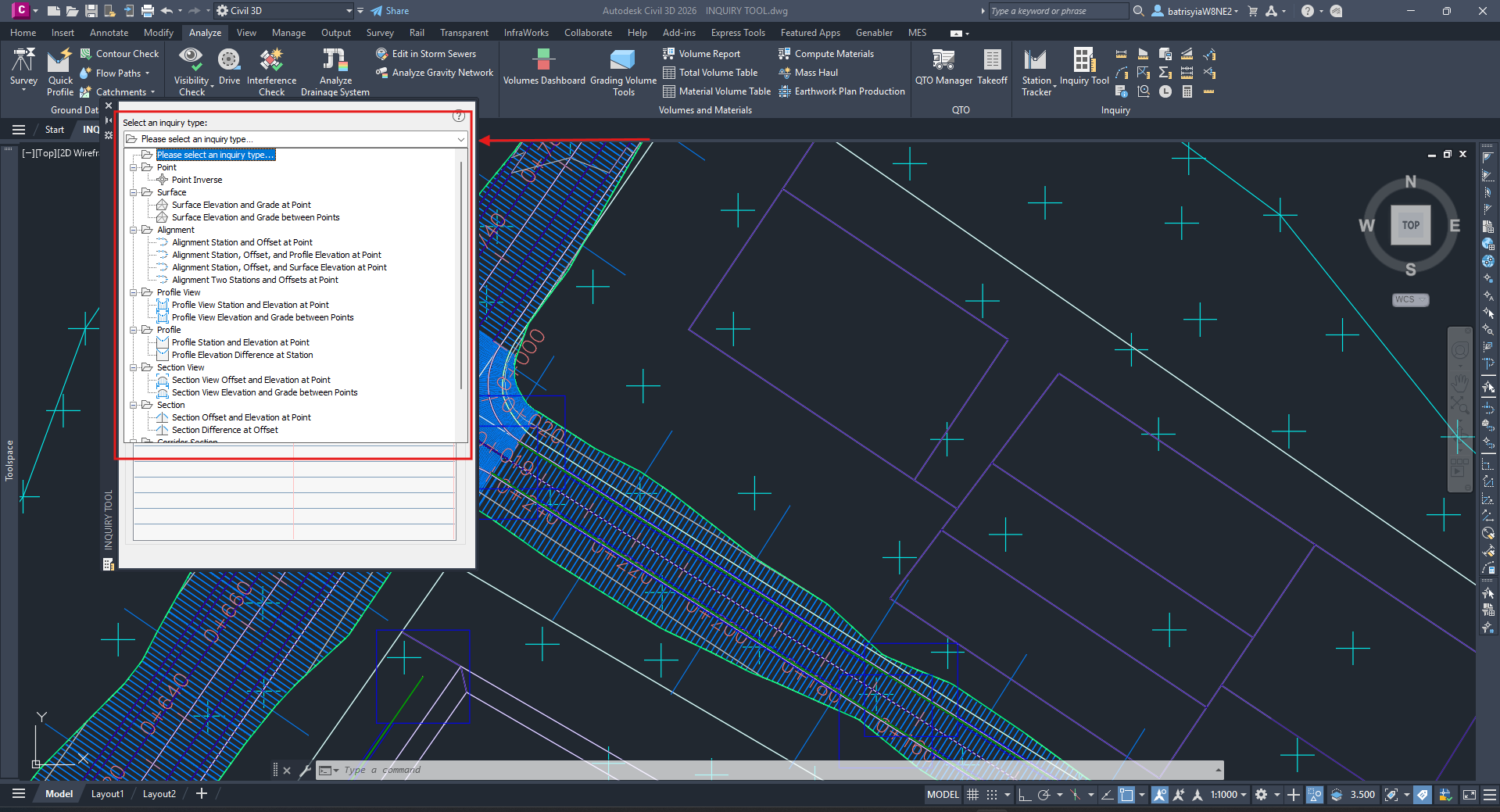
Step 2: Assigning the object
You will be prompted by Civil 3D to specify the exact objects involved in the data extraction- i.e., you will need to select the correct surface from the list of existing surfaces in the drawing.

Step 3: Selecting the point
Civil 3D will prompt for the object’s point selection- the cursor will show ‘+’ sign, and it will snap to the nearest point according to the snap settings.
Therefore, you should ensure that the cursor is snapping to the right point by zooming in to the object.
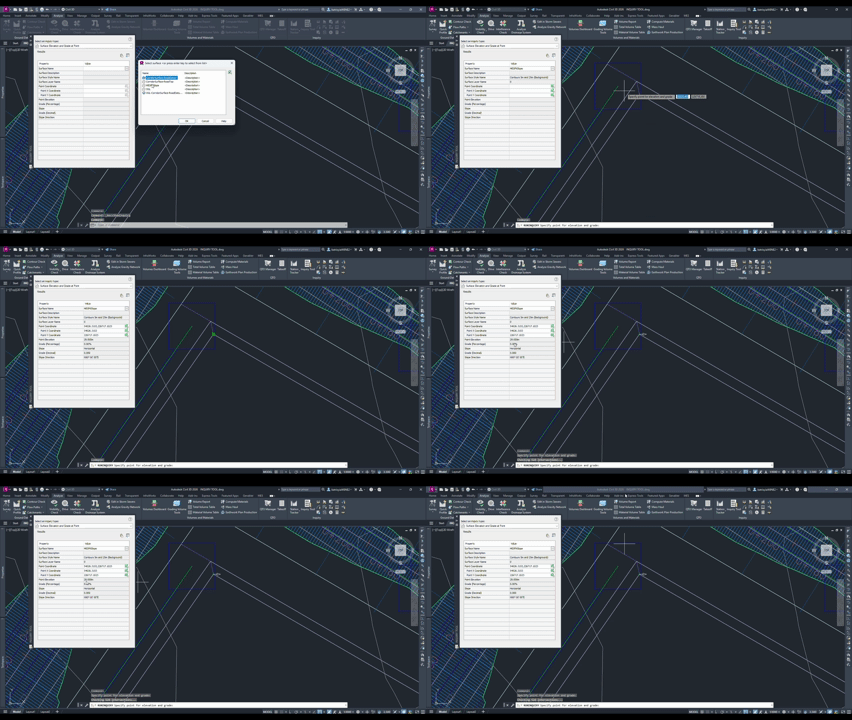
Step 4: Tabulated Results
The results will instantly populate the Inquiry Result section at the bottom of the palette. Note that once a different point of the objects has been selected, the result will be updated instantaneously.
Example: #
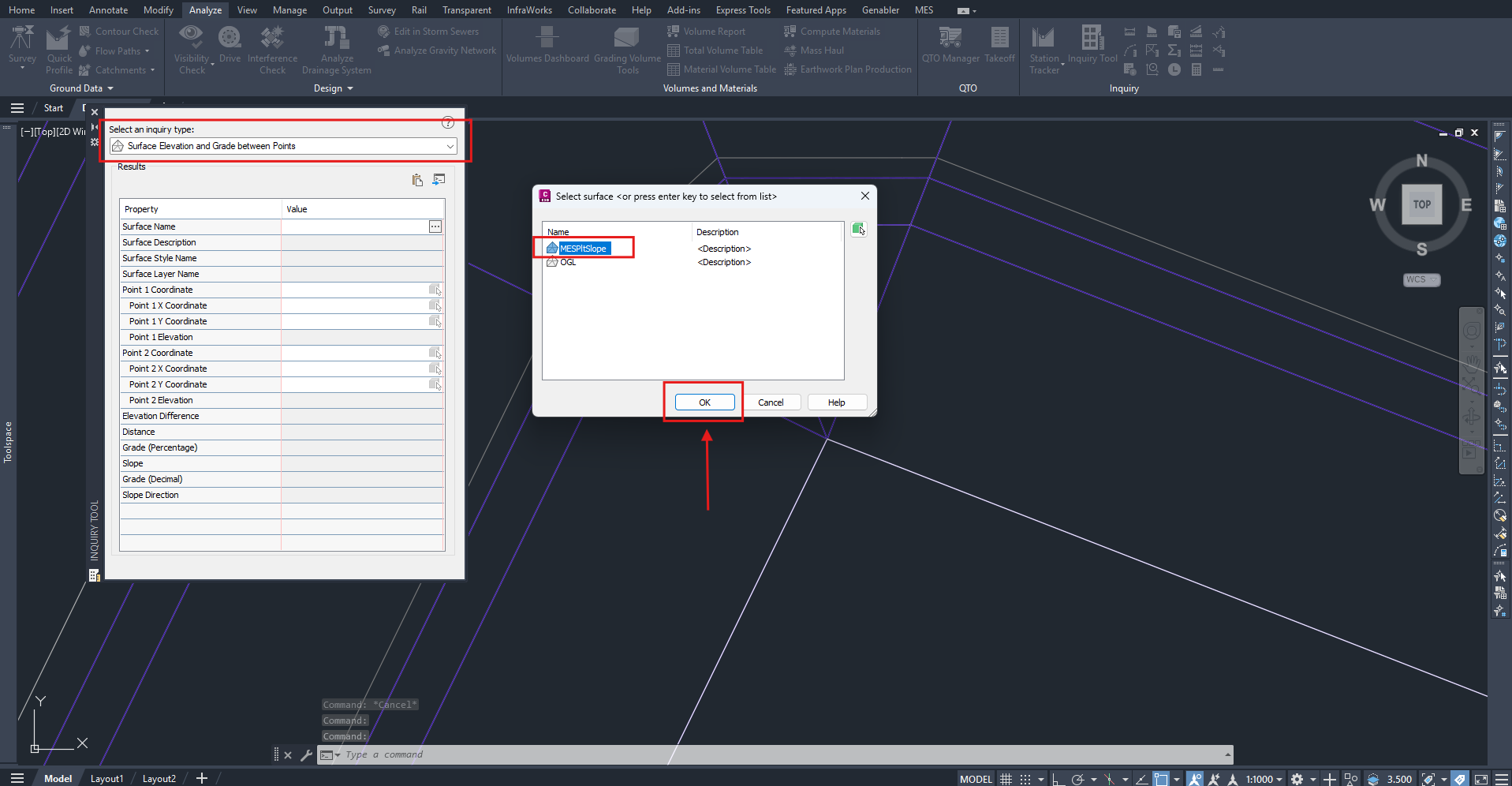
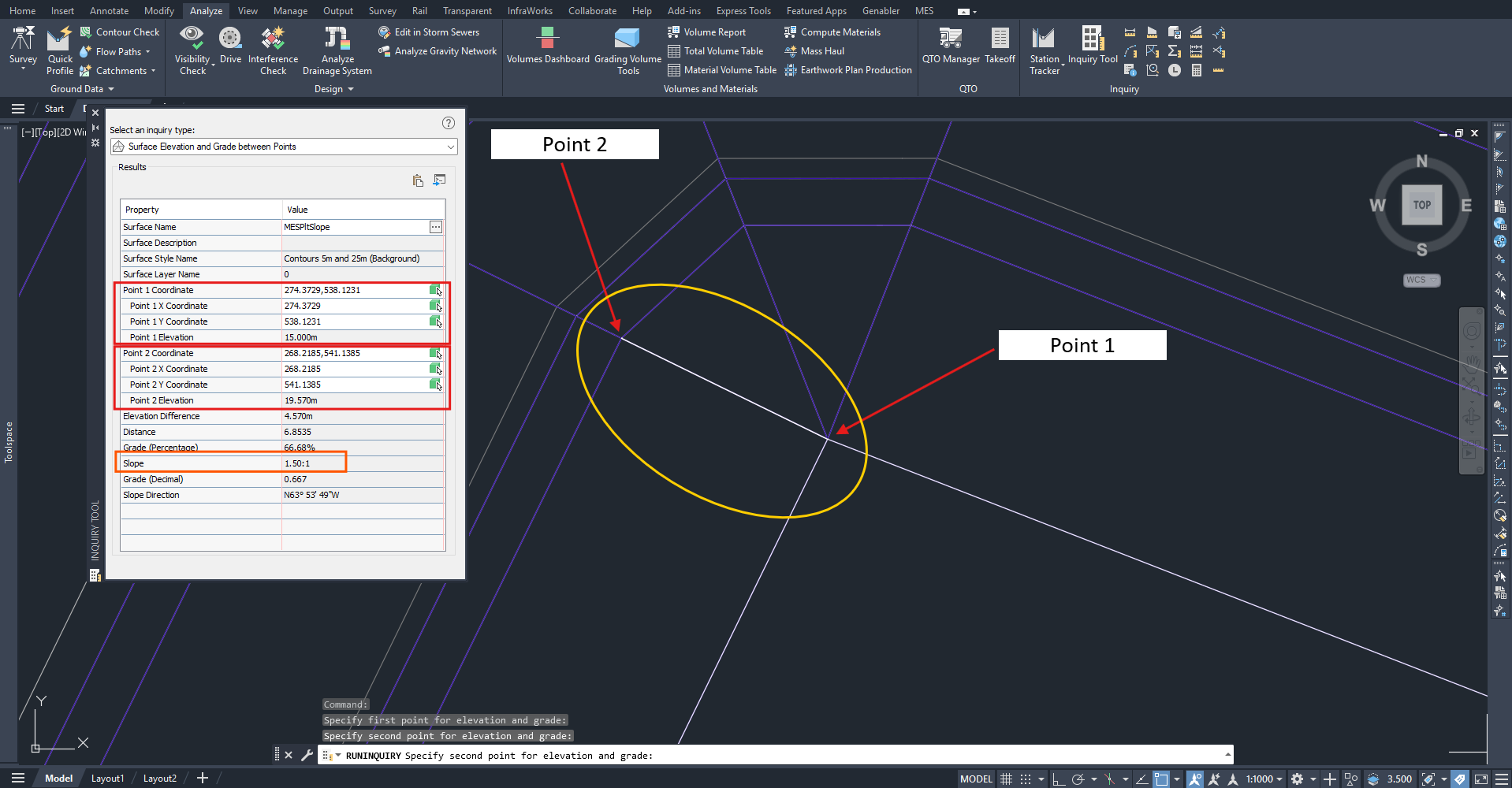
Shown below is an example of the Inquiry Tool application, Surface Elevation and Grade between Points, which is useful in extracting information for the slope design- i.e., checking if the slope is exactly designed with a grade of 1:1.50.
Steps:
- Once the inquiry above has been selected, Civil 3D will prompt to select the surface of the slope design. Click OK.
- Select two points- one point at the top of the slope and one point at the bottom of the slope.
Quick Reference of the Inquiry Tool #
For a technical glossary of the inquiry types, required input, and the results, users may refer to the official guideline provided by Civil 3D- Autodesk Civil 3D Help: About Inquiry Types.
Inquiry Tool vs. Coordinate Tracker: When to use which? #
While the Inquiry Tool may look like it has similar functionality to Coordinate Tracker (and are both useful in data extraction of the surfaces), the differences lie in the behavior, precision of the data read, and the results of the extraction.
| Inquiry Tool | Coordinate Tracker | |
|---|---|---|
| Behavior of the feature | Specific and static: It is based on the picked point of the selected surface | Dynamic: It is based on the position of your cursor (reads where the cursor is hovering) |
| Precision of the data read | High precision with the Object Snaps (OSNAPs) | Low precision |
| Results of the extraction | Provide information based on your inquiry, such as gradings, elevations, distances, and directions | Only limited to the X, Y, and Z coordinates of the surface |
From the comparison above, both tools are great for quick site measurements, but the Inquiry Tool is the better option when the task demands high-precision data, such as reporting or quantification of the earthwork materials.
By providing the query-based analysis and OSNAPs precision, the data extracted is much more reliable- it is no longer an ‘eyeballed’ quantity or an assumption, but a software-justified value, which gives you a convincing design and highly accurate reporting.

My passion is in sharing knowledge — Civil 3D or otherwise– with the world.
I’m also the benevolent dictator for life at MES Innovation Sdn Bhd.


