
This post will review on how to leverage the settings and styles in Civil 3D to display cut and fill volumes in TIN volume surfaces.
What is TIN Volume Surface? #
A TIN Volume Surface in Autodesk Civil 3D calculates the exact cut and fill volume between a base surface (e.g., existing ground) and a comparison surface (e.g., proposed design). It is created via the Toolspace → Surfaces → Create Surface command, where the type is set to “TIN Volume Surface”.
How to create TIN Volume Surface #
-
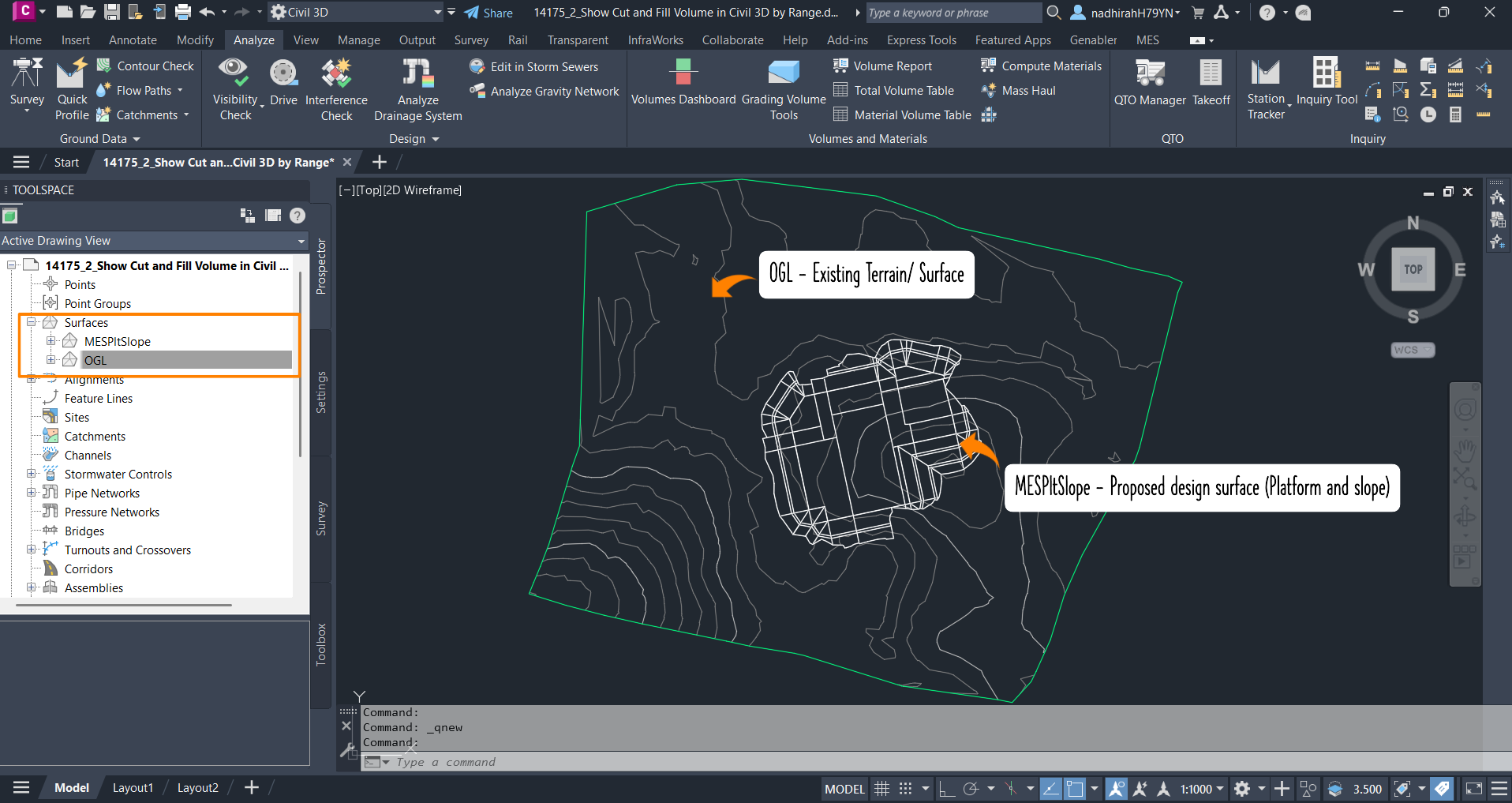
Two surfaces will be compared to quantify the cut and fill volumes. These 2 surfaces will be used to create a TIN Volume Surface
-
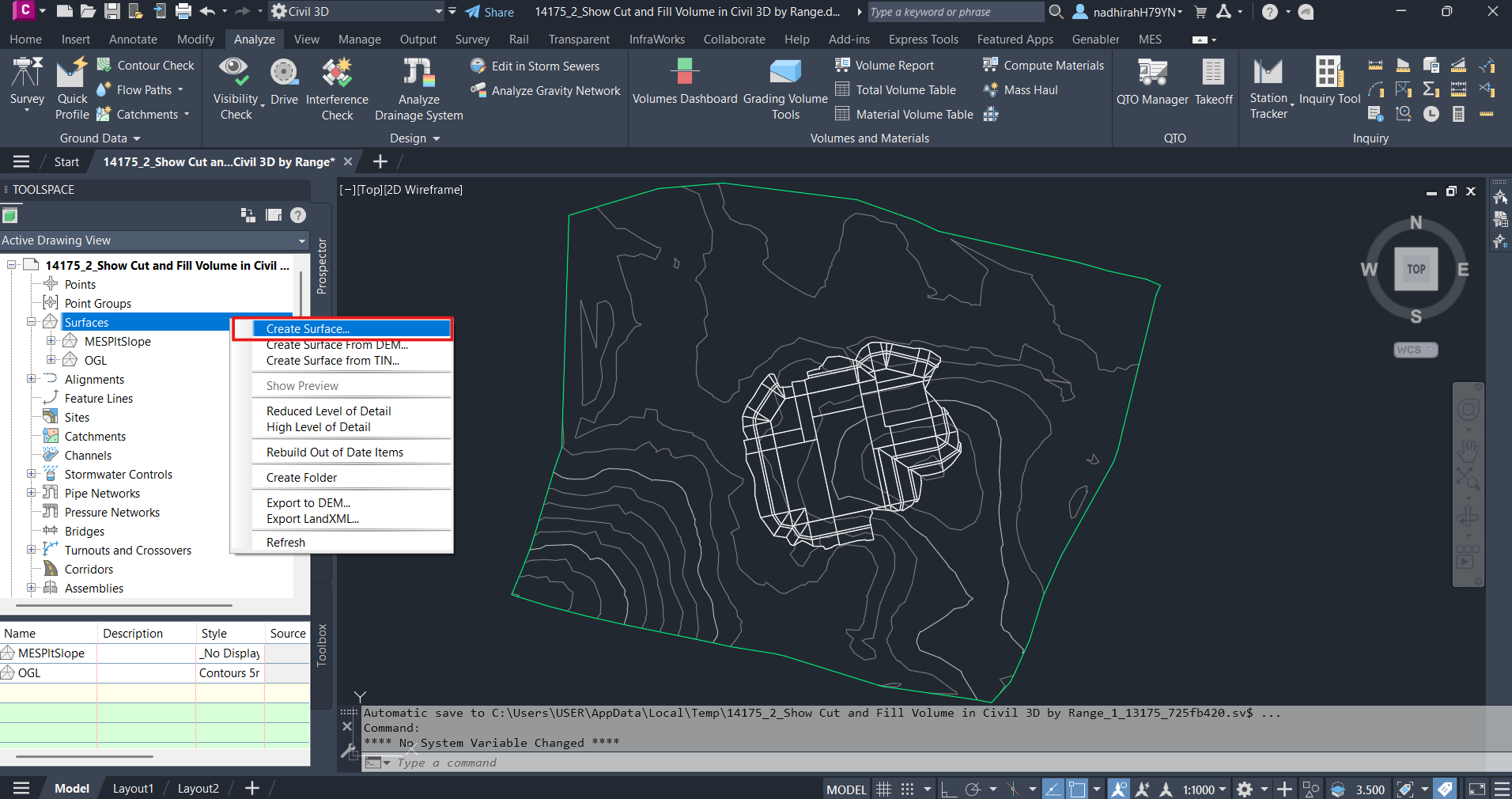
Now create a TIN Volume Surface using either ways below:
-
UI Way Click Home Tab → Toolspace → Under the Prospector Tab, right click Surfaces → Create Surface
-
Command Line Way
TypeCREATESURFACEcommand → press Space/ Enter key
-
-
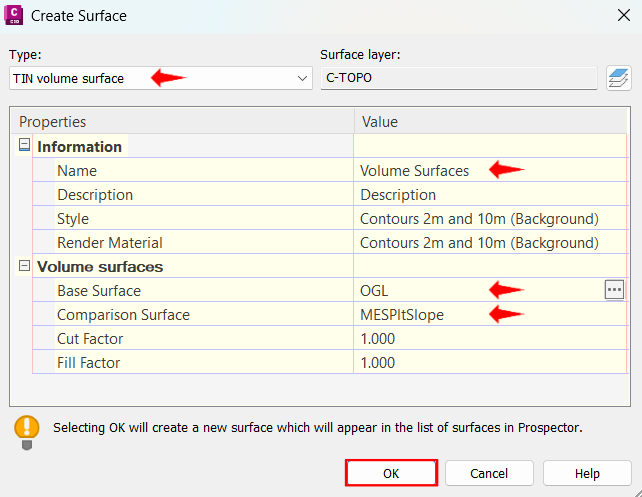
Set the Type to TIN volume surface → Name the surface (e.g.: Volume Surfaces) → Select Base Surface (Existing level) and Comparison Surface (Proposed Level) → Click OK
-
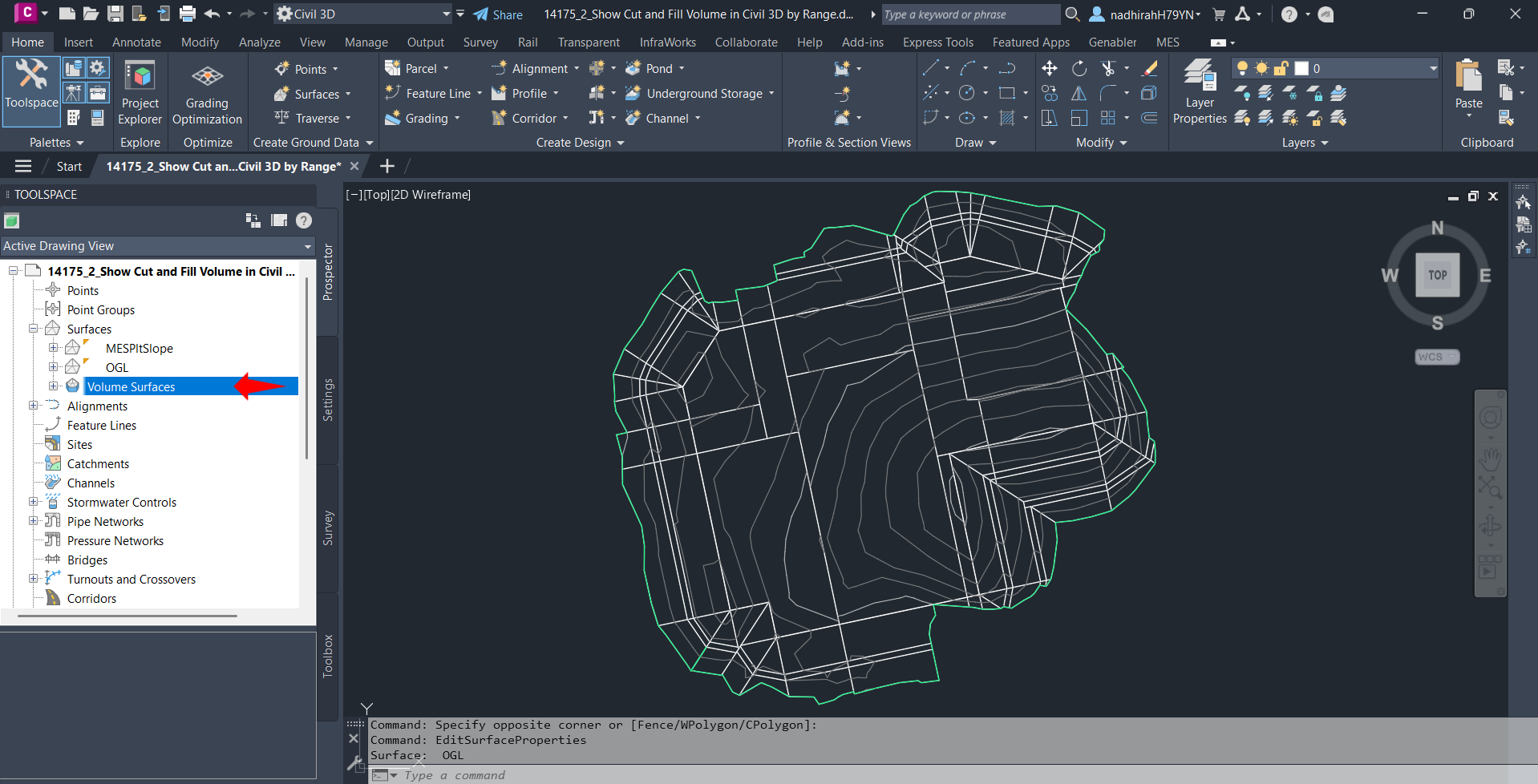
Now the TIN Volume Surface will be added under the Surfaces collection (on the Prospector Tab)
Display Cut and Fill by Number of Ranges #
TIN volume surface is created to compute, at each point, the exact vertical differences (Z-value) between the two referenced surfaces.
The TIN volume areas can be seen clearly by using a Surface Style that shows the ‘Elevations’ component, as this component is the key element that highlights the magnitude and distribution of cut and fill changes across the surface.
Below are the steps on how to display cut and fill by range:
-
Go to Surface Properties of the TIN Volume Surface using either ways below:
-
UI Way
Navigate to Home Tab → Toolspace → Under the Prospector Tab, right click Volume Surfaces → Select Surface Properties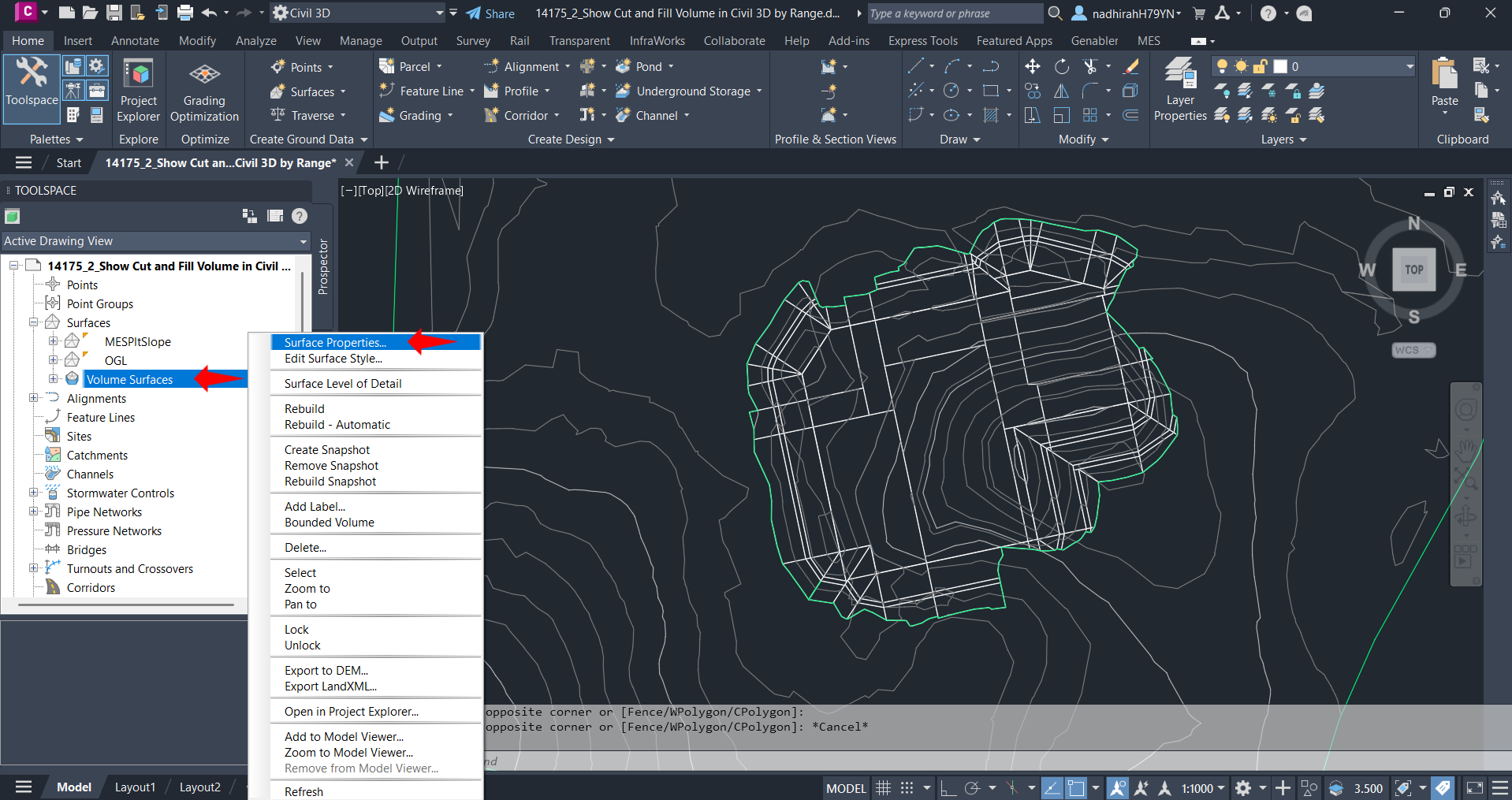
-
Command Line Way
- Type
EDITSURFACEPROPERTIES→ press Space/Enter key - Select the surface on the drawing area // or press Space/Enter key → select Volume Surfaces from Surface list.
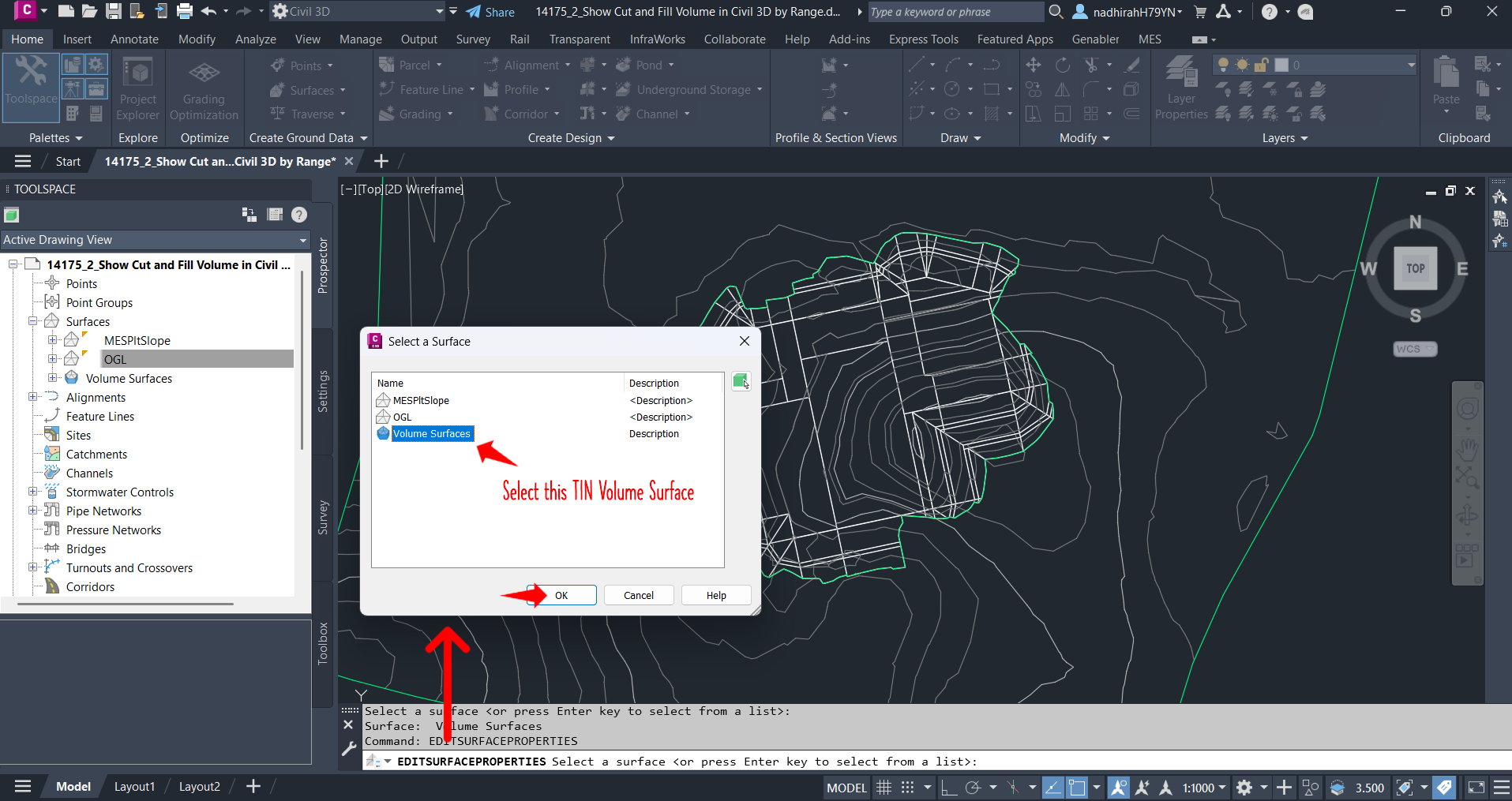
- Type
-
-
Under the information tab, choose any surface style from the dropdown list → click the Brush Icon → Display tab → Enable the visibility of the ‘Elevations’ Component
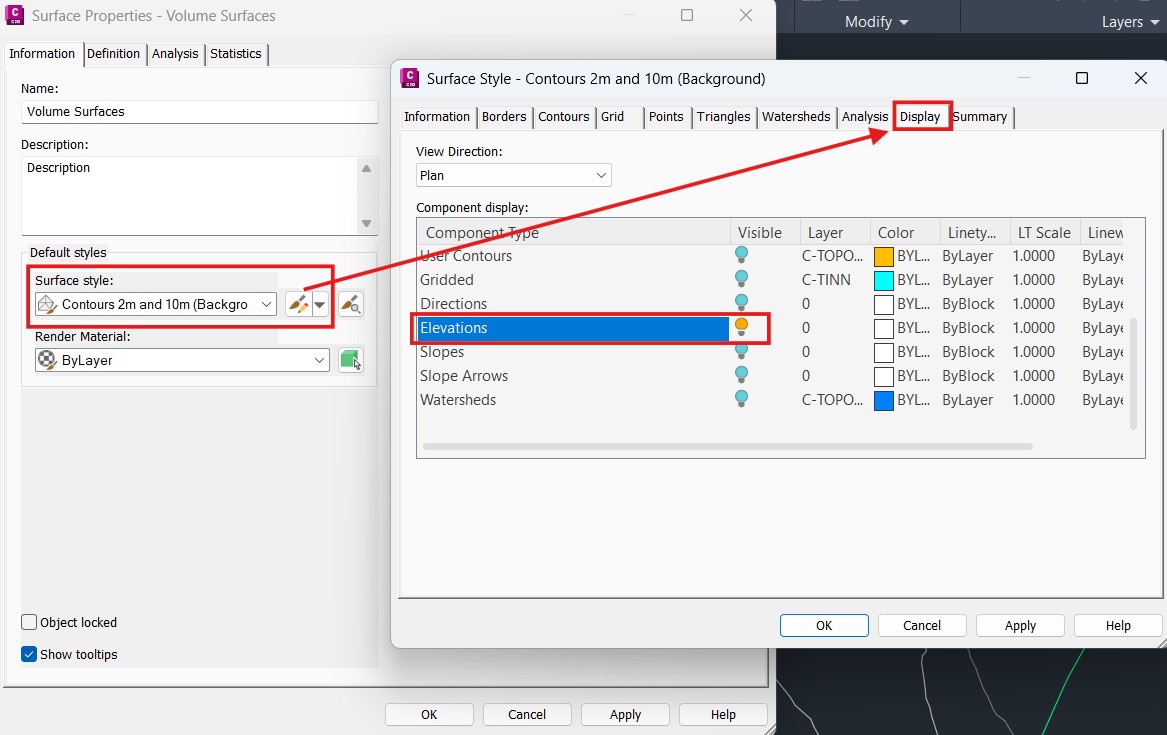
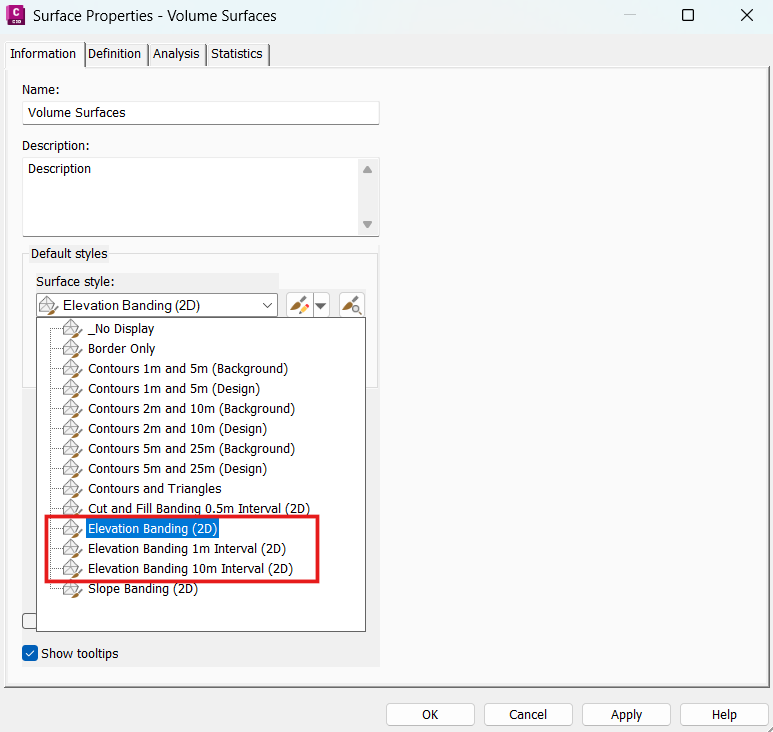
Note: The ‘Elevations’ component has been enabled by default in the following Surface Styles:
- Elevation Banding (2D)
- Elevation Banding 1m Interval (2D)
- Elevation Banding 10m Interval (2D)
For an easier workflow, you can choose either of these surface styles!
-
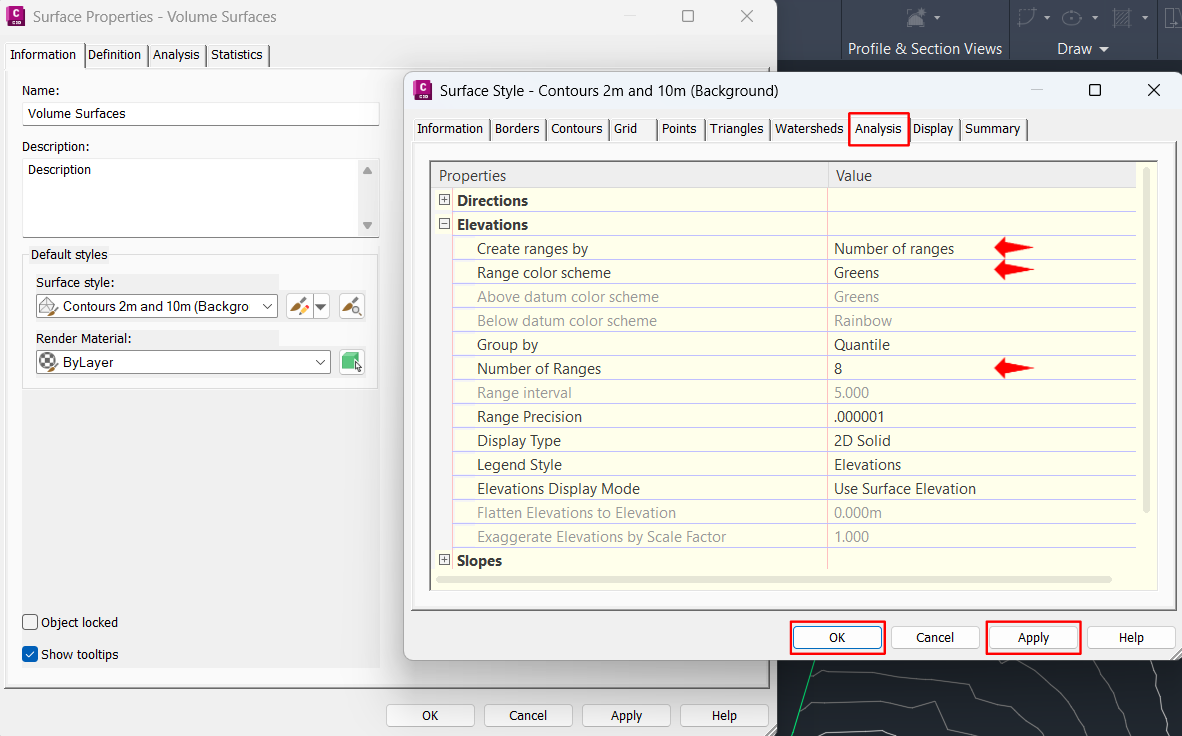
On the same Surface Style dialogue box, go to Analysis Tab → Expand the Elevations sections → Select ‘Range colour scheme’ to preference and adjust the number of ranges (if needed) → Click Apply and OK
-
On the Surface Properties dialogue box, click Apply → OK
-
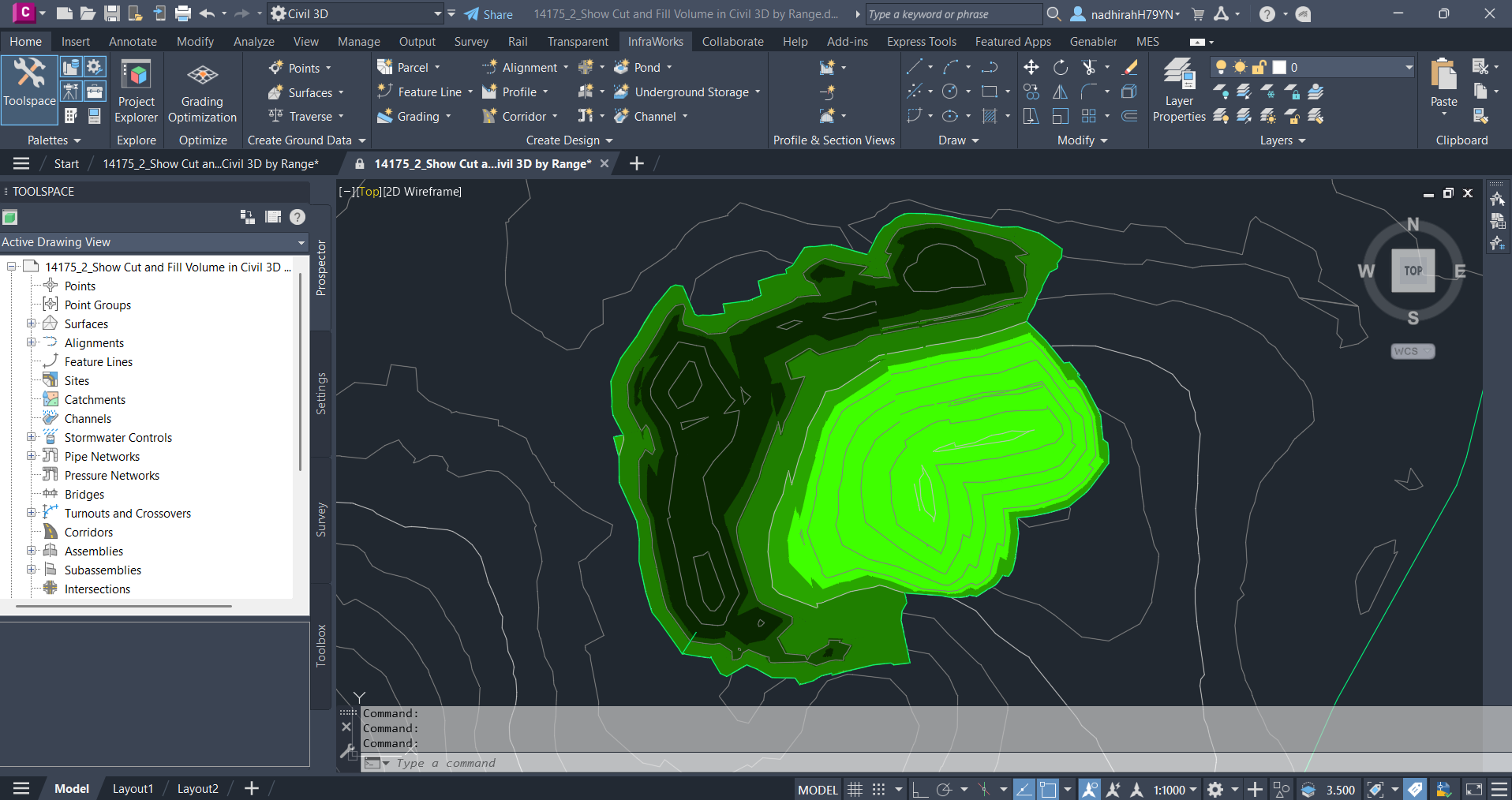
Now the elevation differences from the base and comparison surface will be highlighted in a range of the selected colour scheme.
Customize Colour Scheme to better visualize the cut and fill area. #
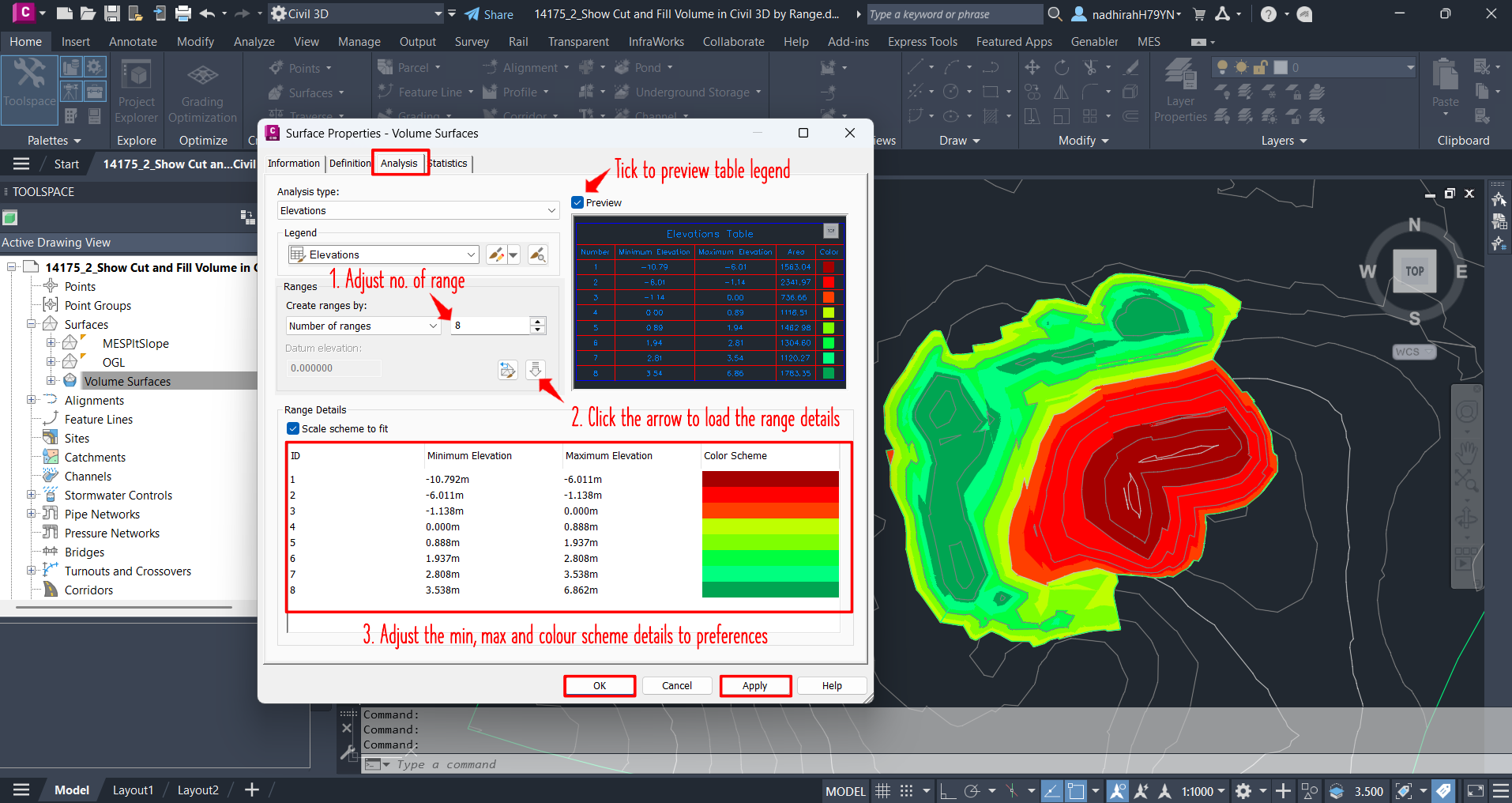
In Civil 3D, negative elevation indicates cut, while positive elevation indicates fill. To better highlight the cut (-ve) and fill (+ve) region, it can be done from the Surface Properties.
- Open Surface Properties following Step 1 above and go to Analysis Tab
- Here, you can edit the Ranges section (Number of ranges/ Range interval/ Range Elevation with datum) and adjust the range number → Click the Downward Arrow icon to load the range details.
- You can custom the colour band mapping to define each Minimum and Maximum elevation range
- Tick the Preview checkbox to view the Elevations Table
- Once finished editing, click Apply and OK
Add Surface Legend Table #
UI Way
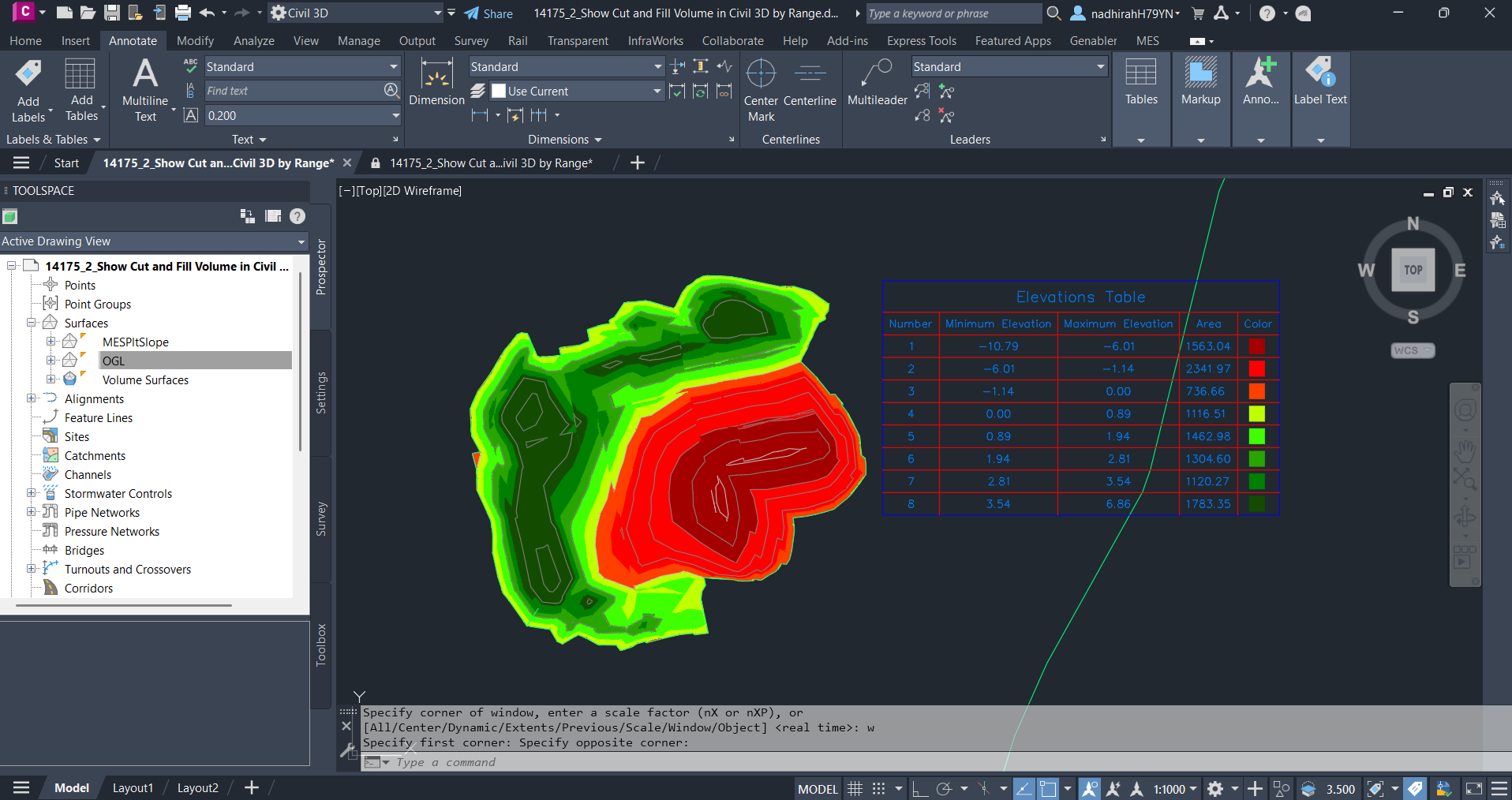
- Navigate to Annotate tab → Labels & Tables panel → Add Tables menu → Add Surface Legend Table
- Select the surface from the drawing area.
- In the command area, click
Elevations - Specify if you want the table to update automatically if the analysis information changes. Click
Dynamicto enable automatic updating. - Select the upper left-hand corner of the table to place in the drawing area.
Command Line Way
- Type
ADDSURFACELEGENDTABLE→ press Space/Enter key - Select the surface from the drawing area
- Type
EforElevations→ Space/Enter key - Type
DforDynamics→ Space/Enter key - Select the upper left-hand corner of the table to place in the drawing area.
View Cut and Fill Volumes #
UI Way
- Navigate to Analyze Tab → Volumes Dashboard
- Click Add Volume Surface Icon → Select the TIN Volume Surface that you want to analyse the cut and fill volume → Click OK
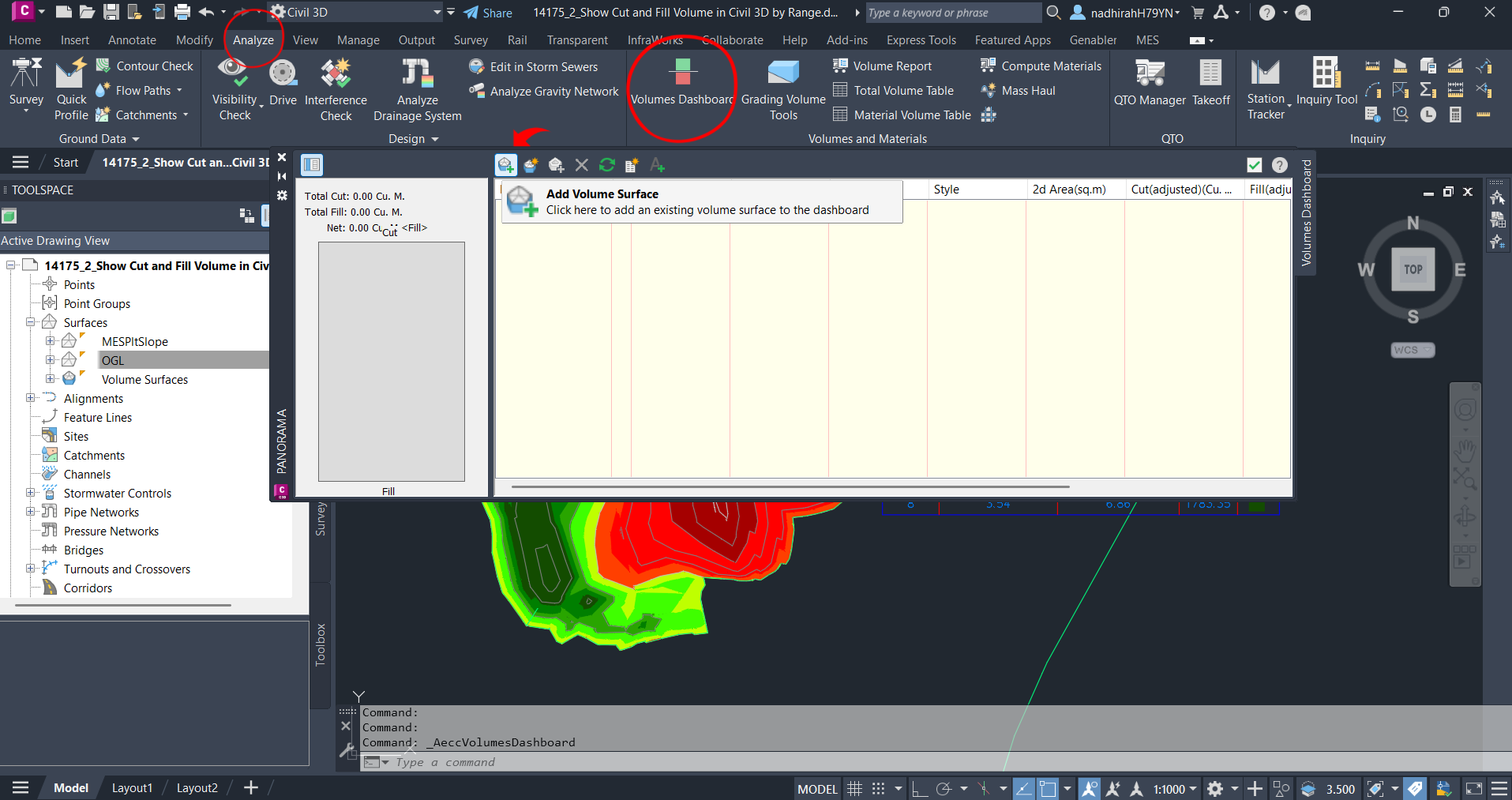
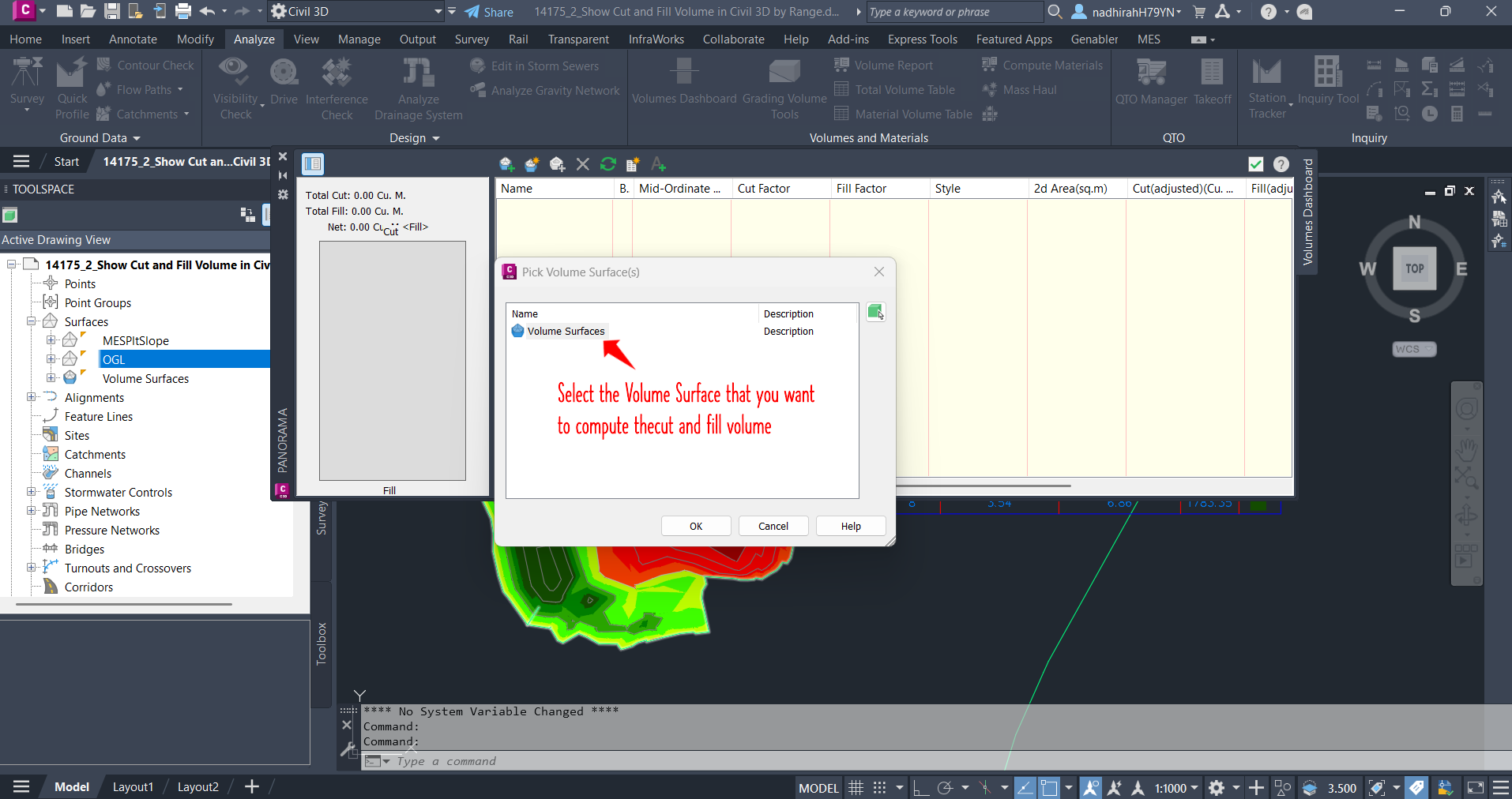
- If required, right click the Volume Surface → Select Rebuild to update/ recalculate the volumes.
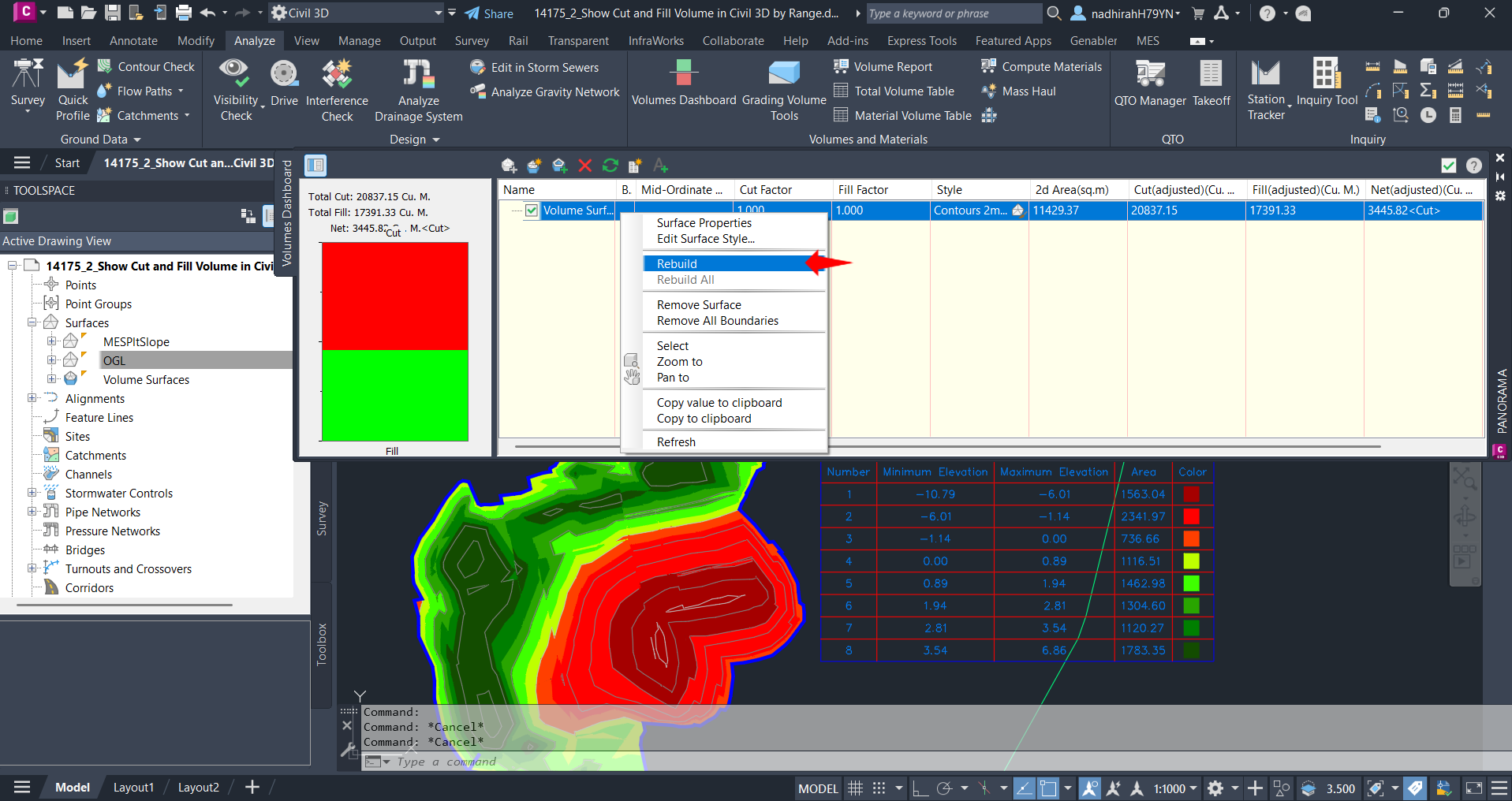
Command Line Way
Type VOLUMESDASHBOARD and follow Step 2 above

My passion is in sharing knowledge — Civil 3D or otherwise– with the world.
I’m also the benevolent dictator for life at MES Innovation Sdn Bhd.


