
Questions: #
In Civil 3D, users need to set the superelevation parameter for subassemblies to Inside or Outside.
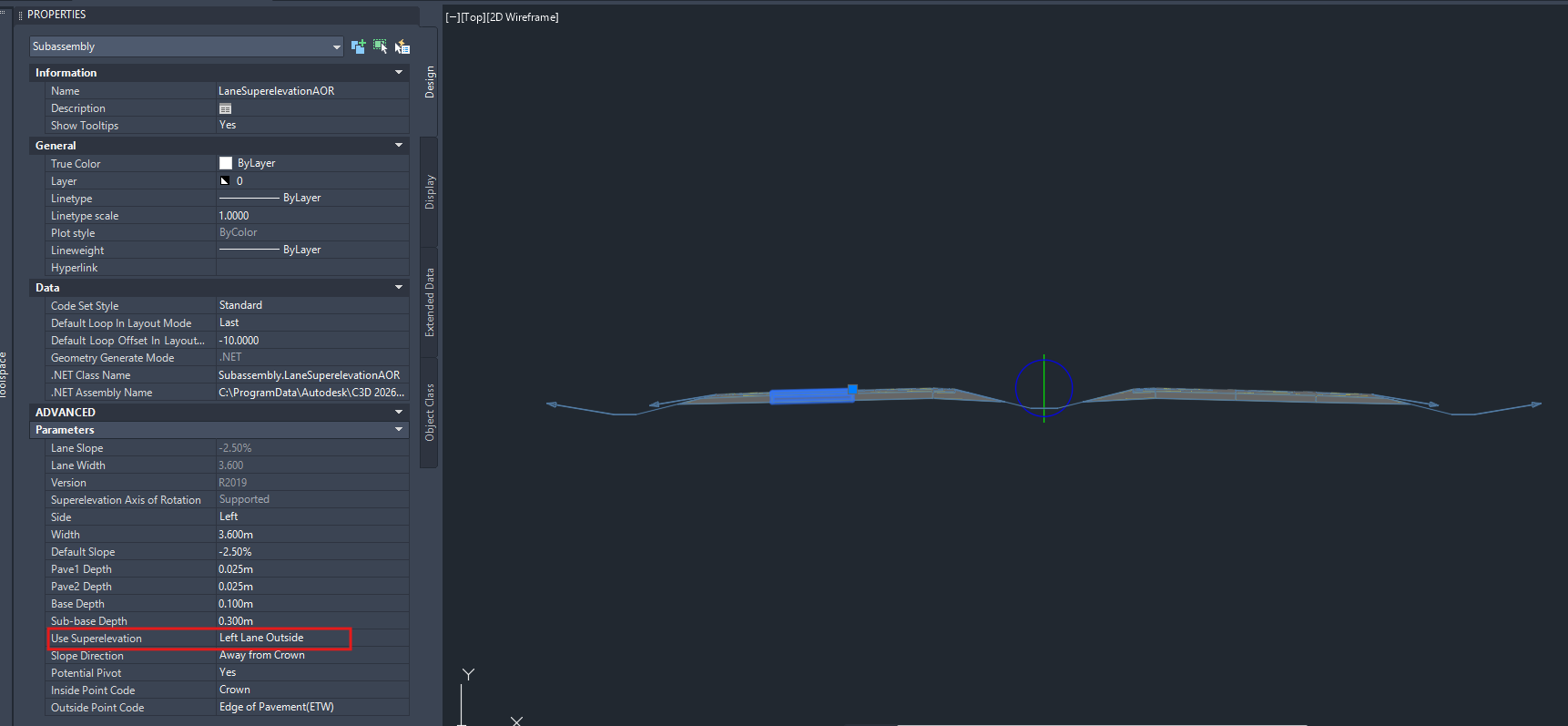
So, what does “Inside” or “Outside” refer to? And what do these options mean to your design?
Understanding Inside and Outside Parameters in Civil 3D #
To better understand the parameters, we can refer to a sample dual-carriageway road model with a median ditch that separates the opposing traffic flows.
Sample Road Model here
| Inside (Lane/Shoulder) | Refer to the subassemblies positioned nearest to the median ditch. It can be a travel lane or a shoulder that is adjacent to the median |
|---|---|
| Outside (Lane/Shoulder) | Refer to the subassemblies located on the far right or left of the roadway (away from the center), leading to the daylight. |
To set the parameters, you may:
Select the subassemblies (i.e., shoulder or lanes) > Properties > Advanced Parameters > Use Superelevation > Choose from the dropdown (By default, it is set to No)
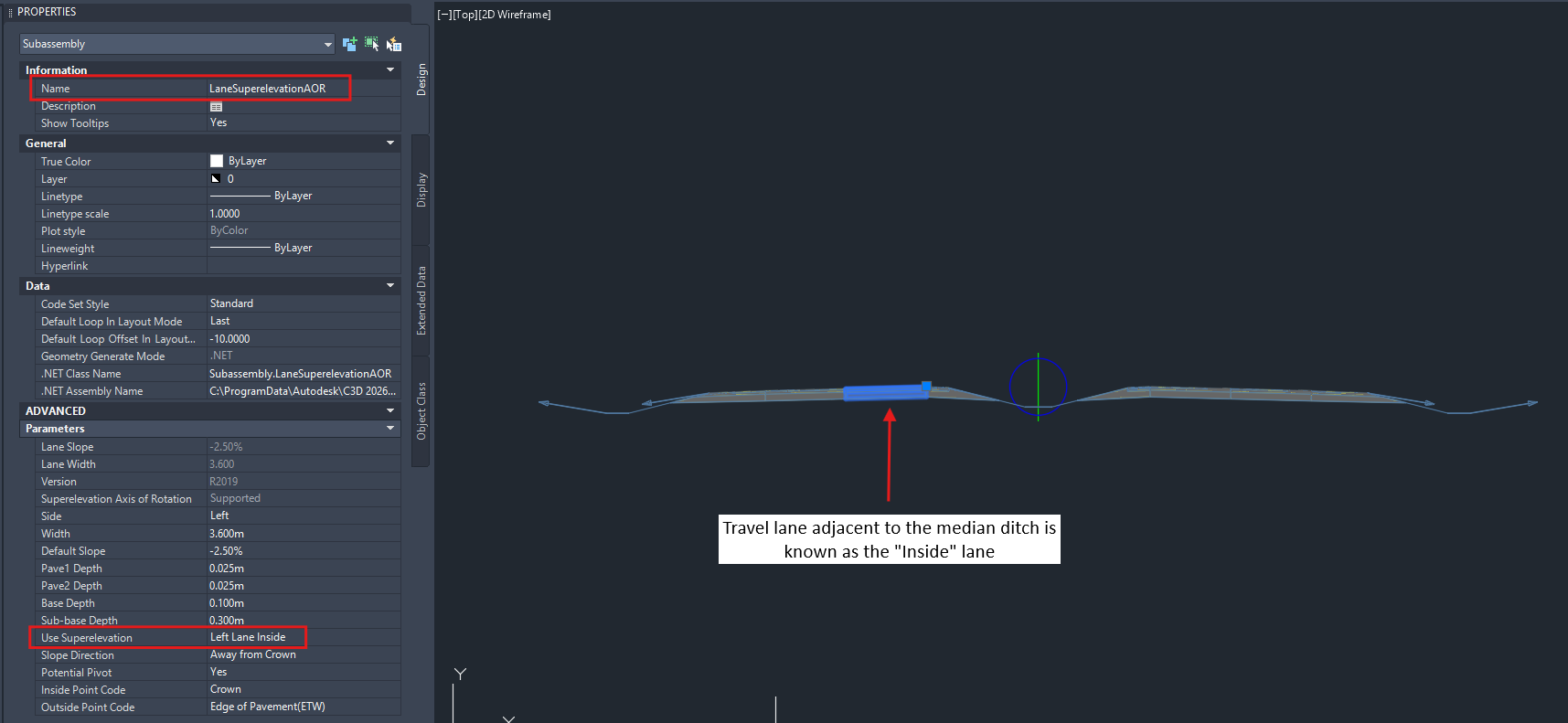 Figure 1: Example of Use Superelevation parameters for road lane
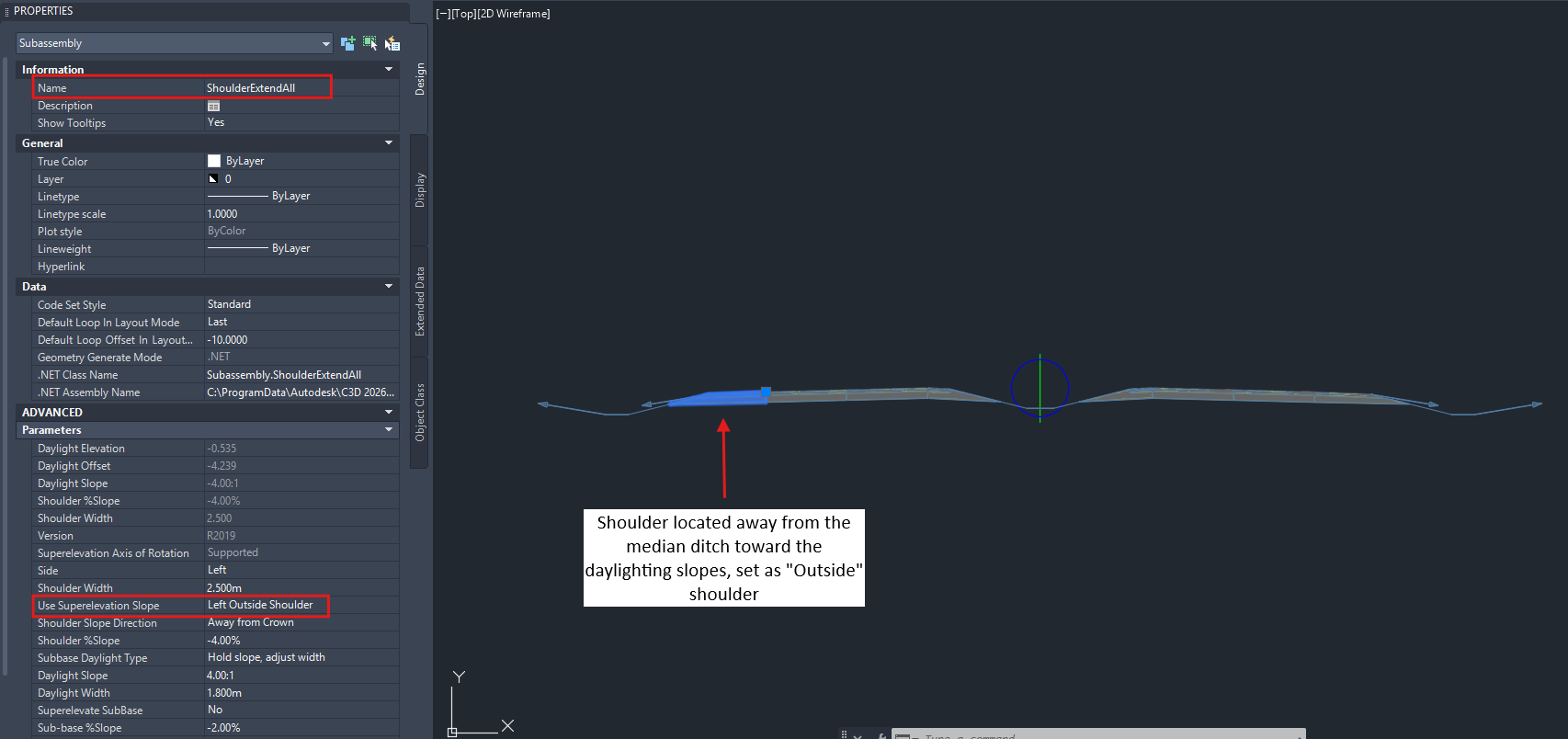 Figure 2: Example of Use Superelevation parameters for shoulder
Further information on the subassemblies and the required Input Parameters can be found in the Autodesk Civil 3D 2026 Help here.
Significance of Inside/Outside Lane Settings in Superelevation and Volume Accuracy #
The subassemblies must be set correctly, as the inside or outside lane (following the correct side of the roadway), to ensure the road is superelevated at the curve.
The Inside/Outside Lane setting provides the software with information on the positions of the subassemblies within the roadway and which slope from the computed superelevation should be applied. Without this information, the carriageways and shoulders will remain, following the Normal Crown of -2.5% and -4% respectively, which will only reduce the safety and comfort of the drivers.
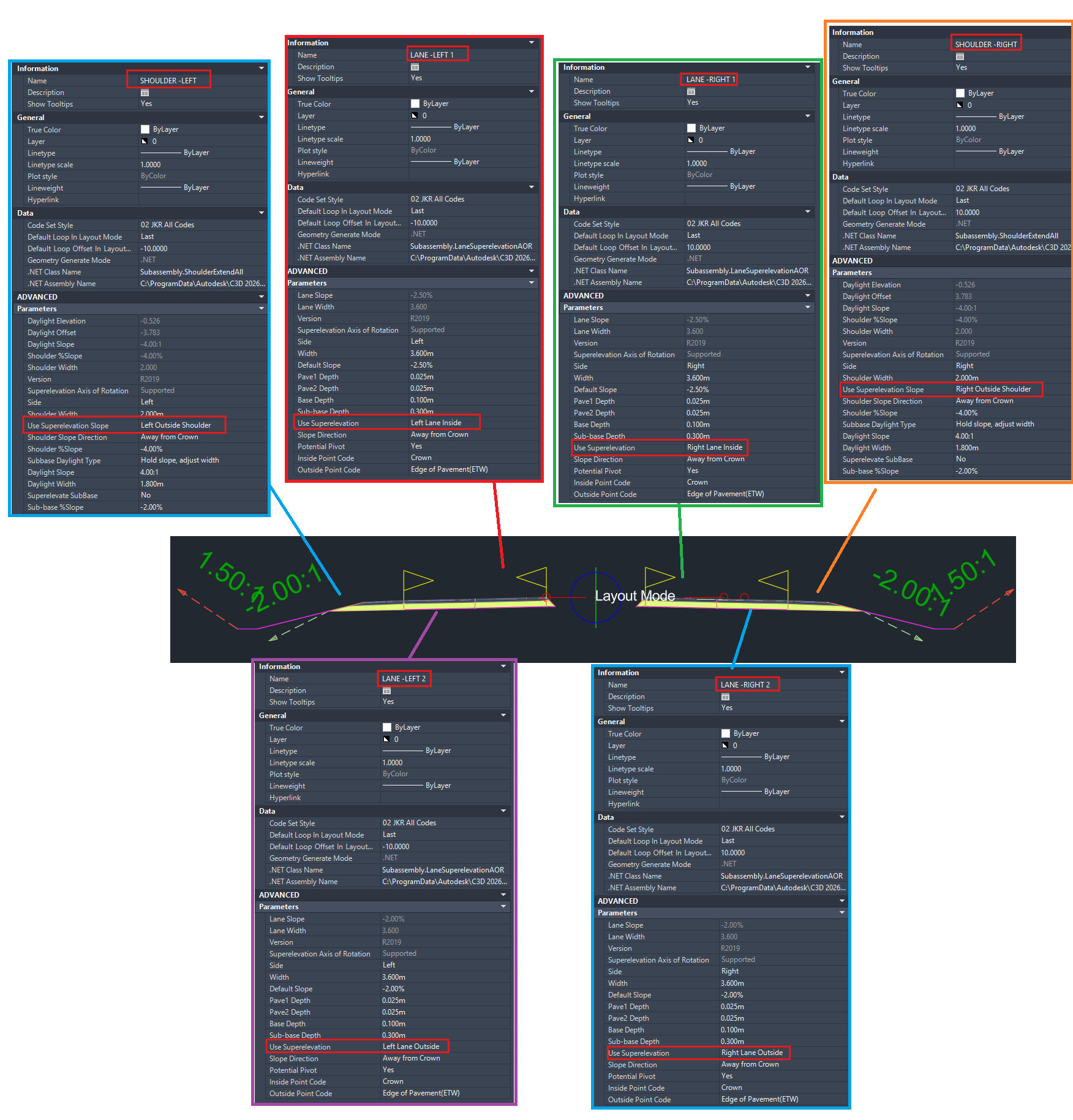
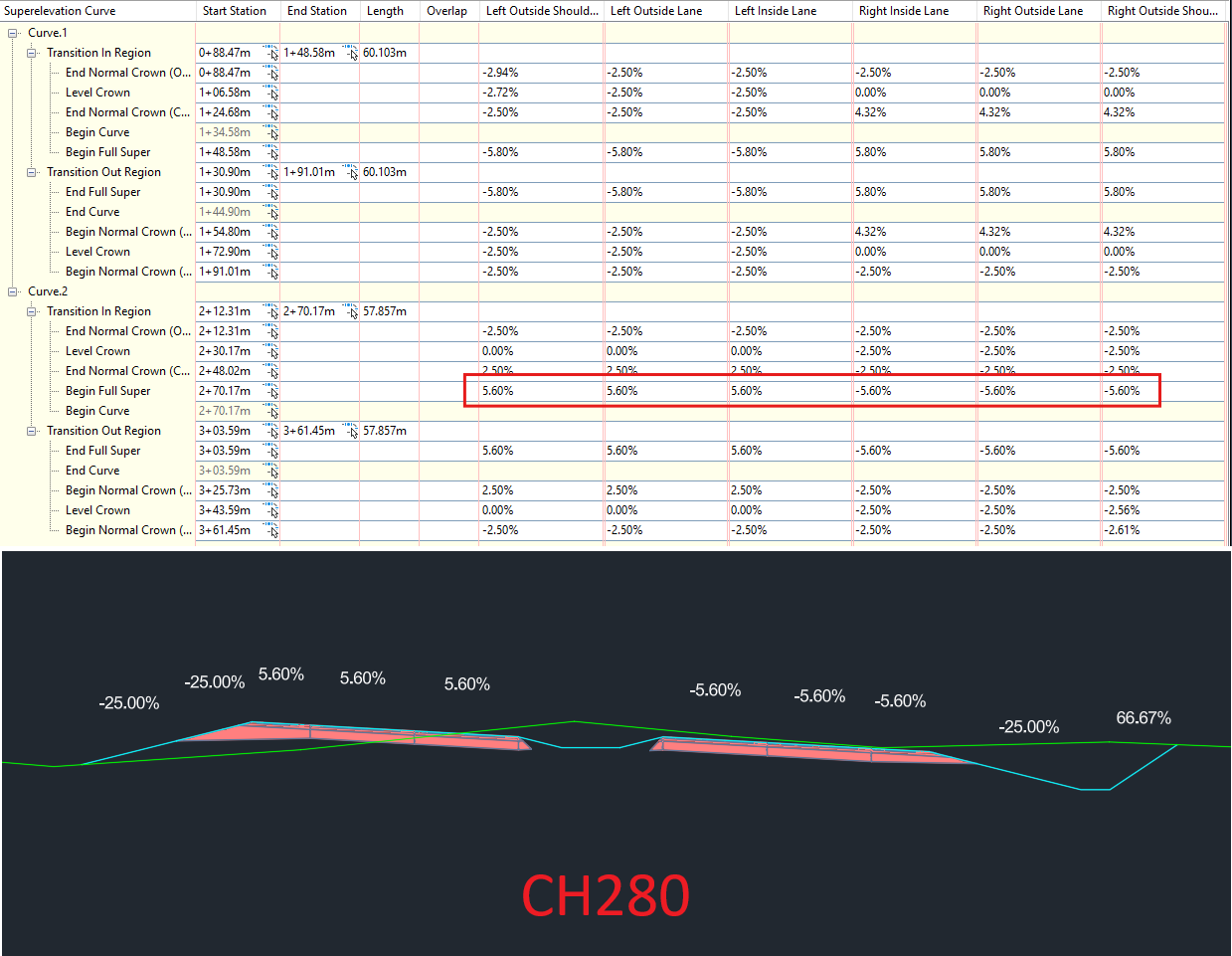 Figure 3 & 4: Results of accurate superelevation parameters for the subassemblies
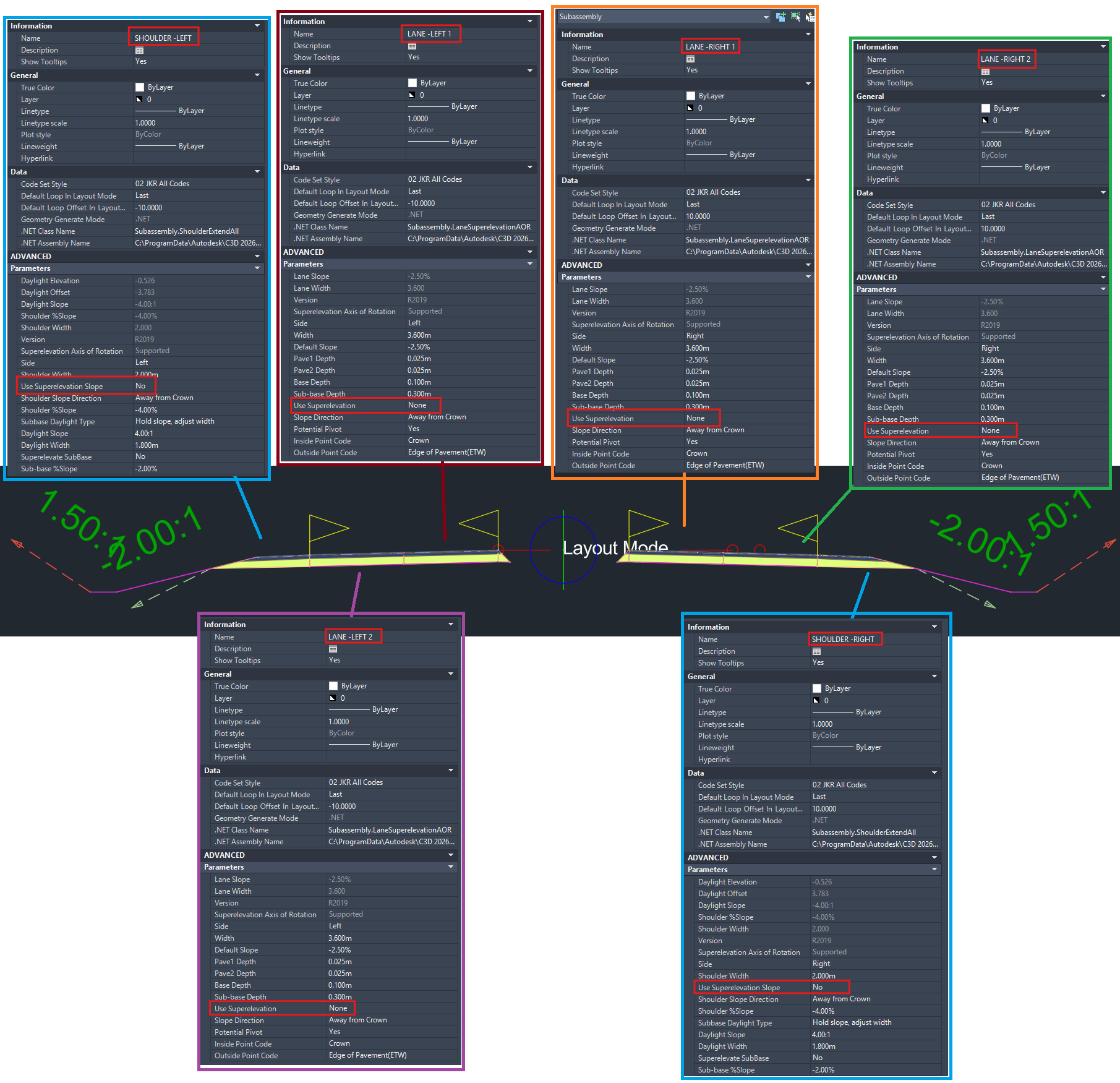
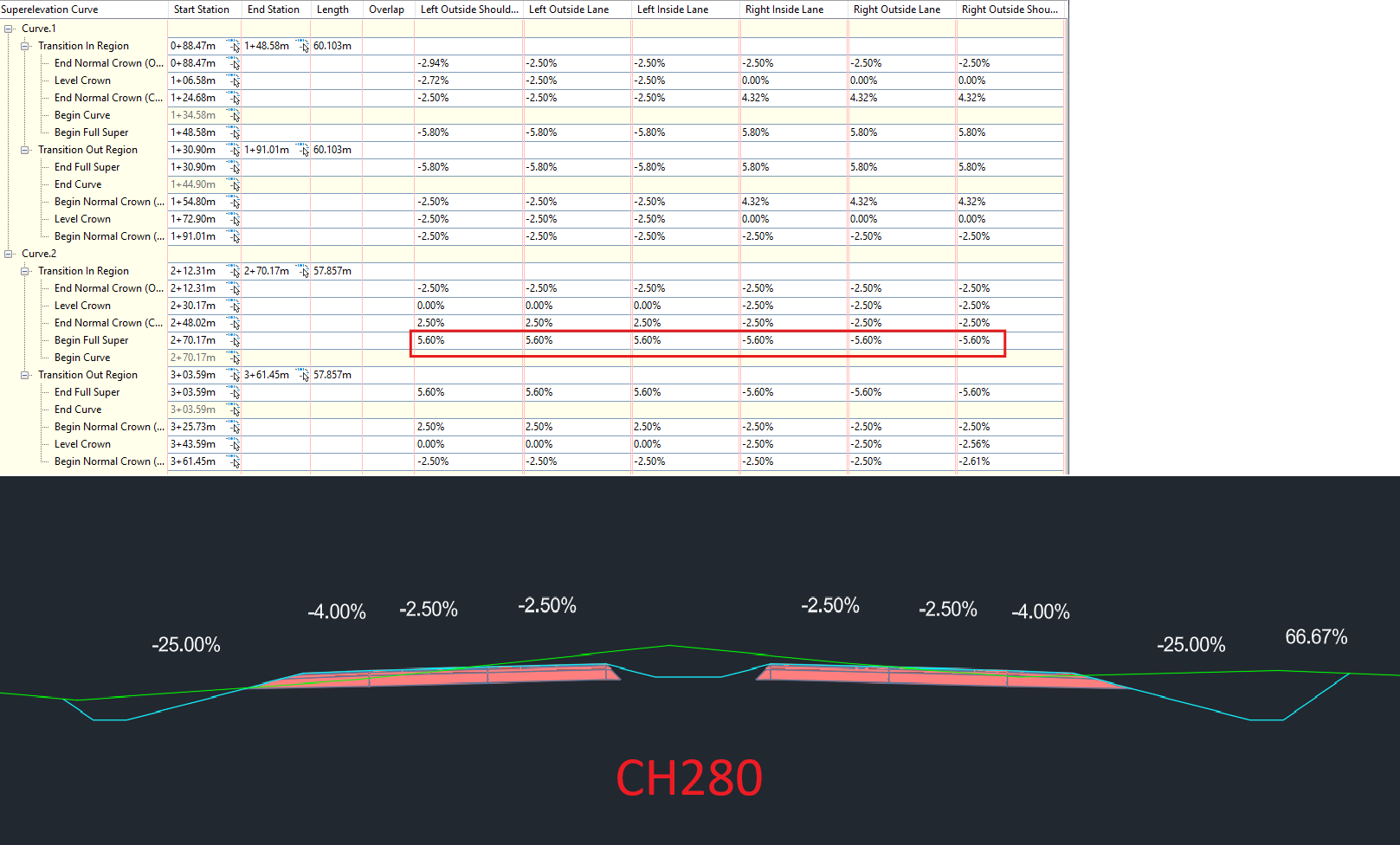 Figure 5: Results of incorrect superelevation parameters for the subassemblies
Additionally, the software will calculate how much cut and fill is needed based on the comparison between the Existing Ground surface and the Road Corridor Top Surface; incorrect shoulders and slopes will only result in an incorrect top surface, leading to incorrect earthwork volumes.

My passion is in sharing knowledge — Civil 3D or otherwise– with the world.
I’m also the benevolent dictator for life at MES Innovation Sdn Bhd.


